Evaluation criteria — functional guide
Scores support review discussions, talent assessment and calibration. Read the criterion, scale, source campaign and configuration version together before comparing results.
The screens in this guide illustrate configurable company criteria. Available score types, scales, question sets and campaign behavior depend on the selected configuration and version.
Audience, access and terminology
Administrators configure company criteria. Authorized reviewers assess employees within a campaign; employees contribute the assessments requested by that campaign. Having access to a campaign does not establish company settings access. Check Roles and permissions and the configuration guide.
| Score | Business meaning | Assessment mechanism |
|---|---|---|
| Performance | Results and contribution over the review period. | Manual standard score or advanced calculation using skills, goals, or both. |
| Potential | Capacity to develop and take on further responsibilities. | Direct scale assessment or weighted questions. |
| Risk of loss | Assessment of the risk that an employee leaves. | Scale assessment; no predictive departure model established in this flow. |
| Impact of loss | Business consequences if the employee leaves. | Scale assessment, independent of the risk of leaving. |
A high risk of loss and a high impact of loss express different concerns. A percentage display is a score format; it does not establish a statistically calibrated probability. The four scores are separate criteria, not four automatic AI predictions.
Read each SMR criterion
- Performance summarizes contribution during the review period. Depending on the campaign, a score can be entered directly or calculated from skill and/or past-goal assessments. Display formats can vary; use the configured scale when interpreting a result.
- Potential assesses development capacity. A company can use a direct scale or weighted questions. Read the configured questions and weights; they define the assessment for that campaign.
- Risk of loss captures the evaluator’s assessment of departure risk. Use the configured scale as a structured judgment, not a probability forecast.
- Impact of loss captures the consequences to the organization if departure occurs. It is separate from departure likelihood; a person may have high impact but low assessed risk, or the reverse.
Scale ranges and labels can differ by company and version. Review risk and impact separately unless the campaign configuration explicitly defines a combined interpretation.
SMR — find the company criteria
Open Performance → Evaluation criteria, or open the settings page. Select Performance, Potential, Risk of loss or Impact of loss. Read the selected version, method and scale. Opening a tab or historical version does not activate it for an existing campaign.
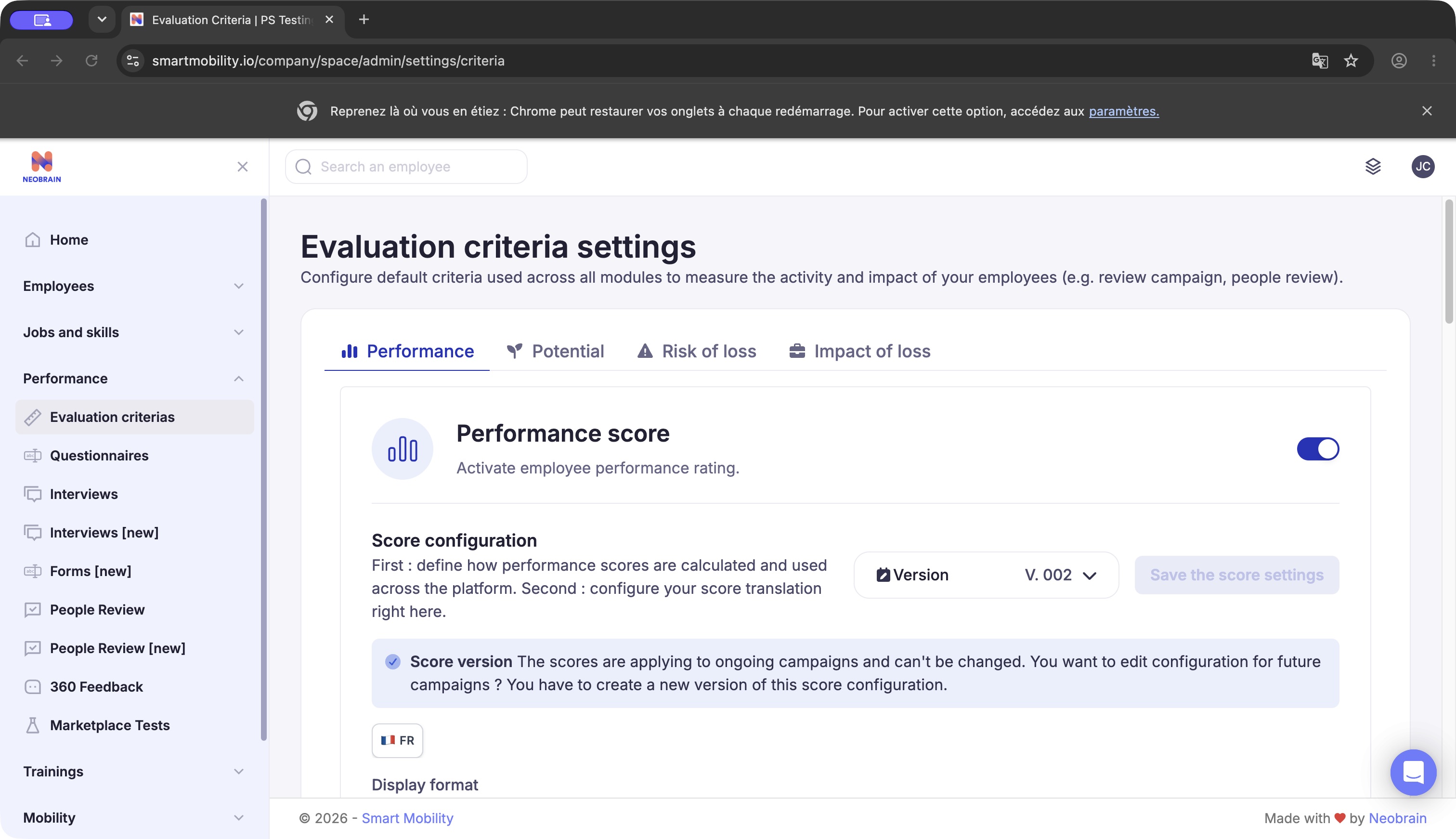
Company SMR settings show the selected criterion and configuration version. Use these administrator settings to review the method and scale.
SMR — use Performance in a review
In a review campaign with Performance enabled:
- The administrator enables Performance on the review campaign and selects its calculation sources when advanced mode is used.
- Participants complete the requested skills and/or past performance goals questions.
- During the interview stage, review the Performance section when it is available.
- In Standard Score, the primary evaluator enters the score. Employee and second evaluator can view/comment according to sharing rules, but do not enter a separate final Performance score.
- In Advanced Score, review the calculated result and breakdown. The primary evaluator may override it with a custom score and mandatory justification.
- Complete the review using the campaign’s required answers and score. Available reports and profile history depend on the campaign configuration.
Understand advanced weighting
There are two independent levels of weighting. First combine employee and reviewer assessments within skills, and separately within goals. Then combine the resulting skills and goals scores. Goals can use a different employee/reviewer distribution from skills.
Weighting example: employee skills = 70, primary evaluator skills = 90, employee weight = 40%, reviewer weight = 60%. With one evaluator the component is 70 × 0.40 + 90 × 0.60 = 82. With a second evaluator contributing 80, the reviewer share splits equally: 70 × 0.40 + 90 × 0.30 + 80 × 0.30 = 79. Use the weights configured for your campaign.
If skills = 80 and goals = 70, a 70% / 30% overall distribution gives 80 × 0.70 + 70 × 0.30 = 77 on a normalized 0–100 scale, before display conversion. A skills-only or goals-only campaign does not use the overall split. Use available answers from participants who answered partially; exclude participants who did not contribute. If the second evaluator is absent, their reviewer share goes to the primary evaluator.
Override visibility and comments
When score overrides are enabled, an authorized evaluator can enter a custom value and justification. Campaign sharing rules determine whether participants can also see the calculated result, its details and justification; check the campaign settings.
Comments follow the campaign’s ordinary answer-sharing rules, including Show my answers where configured. Comments and justifications are separate. Do not infer access to other information from the final displayed score.
SMR — Potential
Use the configured campaign assessment rather than interpreting the settings preview as an employee result. In weighted mode, the campaign combines answered subquestions using their configured weights.
For weighted Potential, use the questions and weights defined by the selected company version. The configured weights must satisfy the total shown in settings.
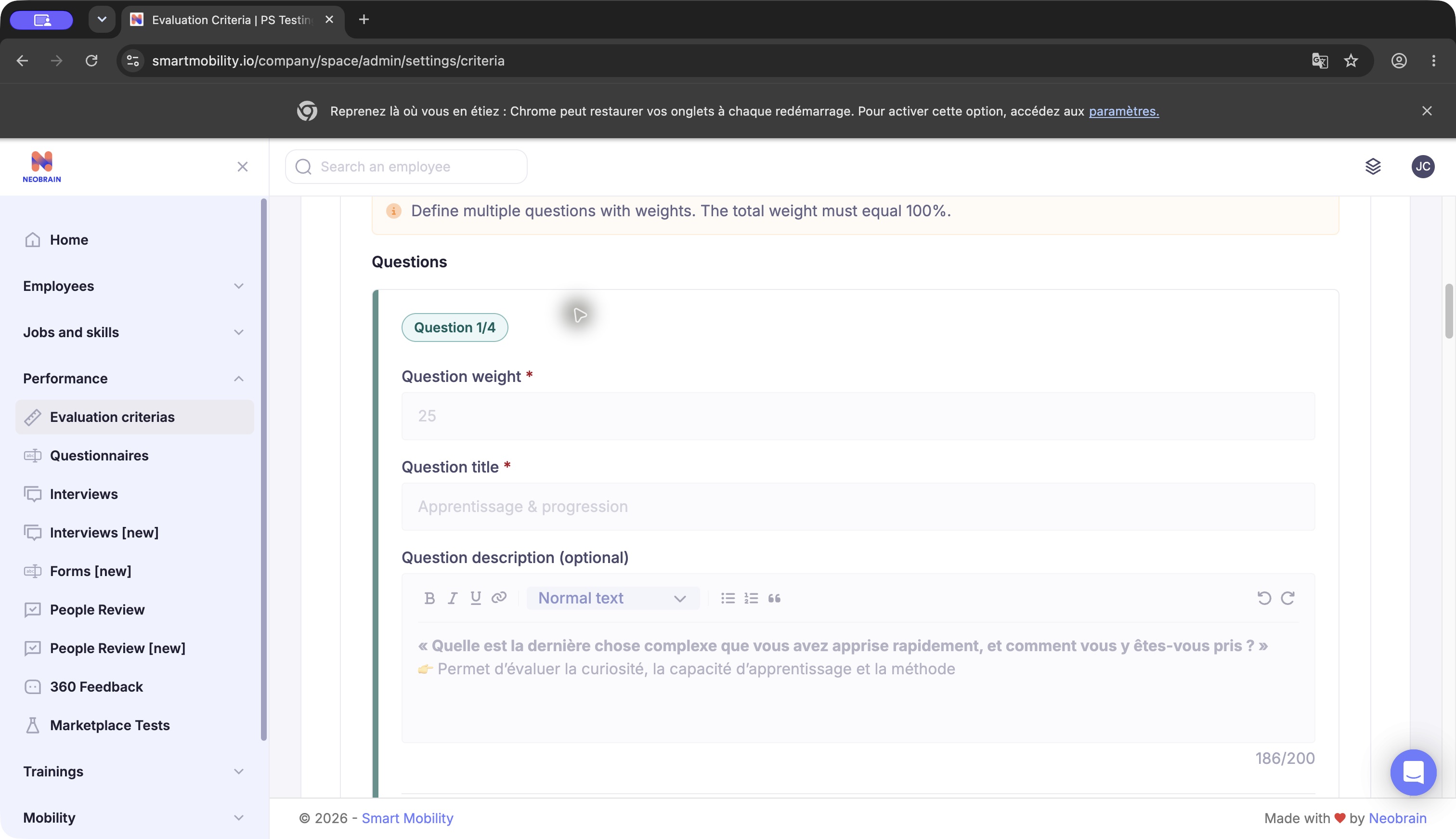
Potential settings show each configured question, its weight and optional description. This is configuration content, not an employee assessment.
SMR — Risk of loss and Impact of loss
In the campaign, choose a value on the configured scale and read its label. Risk describes likelihood as assessed by the reviewer; impact describes business consequences. There is no verified automatic formula combining the two into a single score.
Use the labels and range shown by the selected campaign version. Historical versions may use different scales.
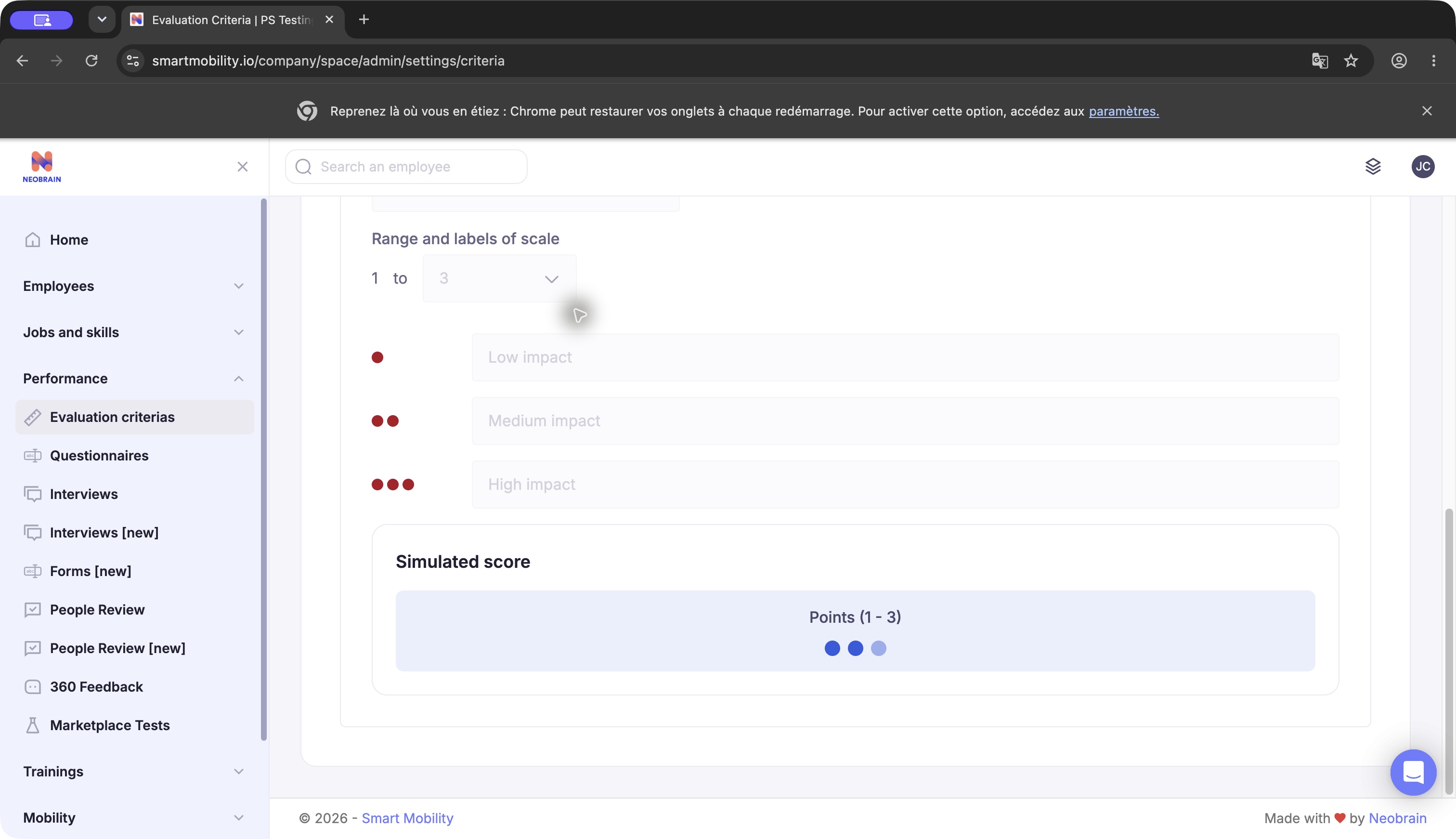
Impact scale in Chrome: 1–3, Low impact / Medium impact / High impact. “Simulated score” illustrates display only; it does not calculate a real employee result.
SML — legacy assessment and calculated sections
For campaigns using the legacy assessment flow, score indicators and labels can be specific to that campaign. Follow the definitions shown in its questionnaire and review configuration; see the technical guide for implementation details.
A separate questionnaire section mechanism calculates scores from scored choice and range answers when the section has an indicator. It averages eligible answered questions and associates the result with the configured indicator bands. See the technical guide for the exact denominator and empty-data behavior.
For an existing SML campaign, have an authorized administrator identify its questionnaire, scored questions, section indicators and manually entered indicators before interpreting a value. No universal mapping of these indicators to Performance, Potential, Risk of loss and Impact of loss was established. No automatic migration or shared SMR/SML history was established either. Continue using the campaign’s own definitions; do not transfer SMR weights or formats by assumption.
Legacy campaigns may use different indicators and assessment paths from SMR. Do not assume that similarly named criteria use the same scale, calculation or history; use the campaign’s own configuration.
Troubleshooting and expected results
| Situation | What to check |
|---|---|
| Criterion absent in a campaign | Company activation, campaign criterion selection, selected version and form sources. |
| Disabled settings | A historical or used version may be locked; review the version menu. |
| No calculated Performance | Required skills/goals data and campaign activation. Missing data is not evidence of poor performance. |
| Score differs from expectations | Source participants, included skills, goal weights, component split, override and display format. |
| Preview differs from an employee result | Settings previews demonstrate formatting; they are not actual review computations. |
| Two identical-looking labels have different results | Check version, scale bounds and normalized values before comparing. |
| Legacy section displays zero | Check eligible answered questions; the helper initializes empty sections at zero. |
Interface generations
Assessment flows differ between legacy and redesigned campaign experiences. Available procedures and results depend on campaign configuration; see the technical guide for implementation details.
Last updated on 3 November 2026