Development plans — redesign functional guide
Purpose, audience and prerequisites
The redesigned development-plan question helps an employee and authorized evaluators agree on development axes, tasks and training needs during an interview. An axis is a development goal; a task is an action under that axis; a training request records a learning need. A request does not establish enrolment, funding or attendance.
You need an assigned nextgen interview whose published form includes a development question, an editable participant phase and the appropriate access. Tasks, comments, external training fields, opinions and request limits depend on that question's settings. Profile follow-up and interview editing are different workflows.
Employee: complete the development question and the whole interview
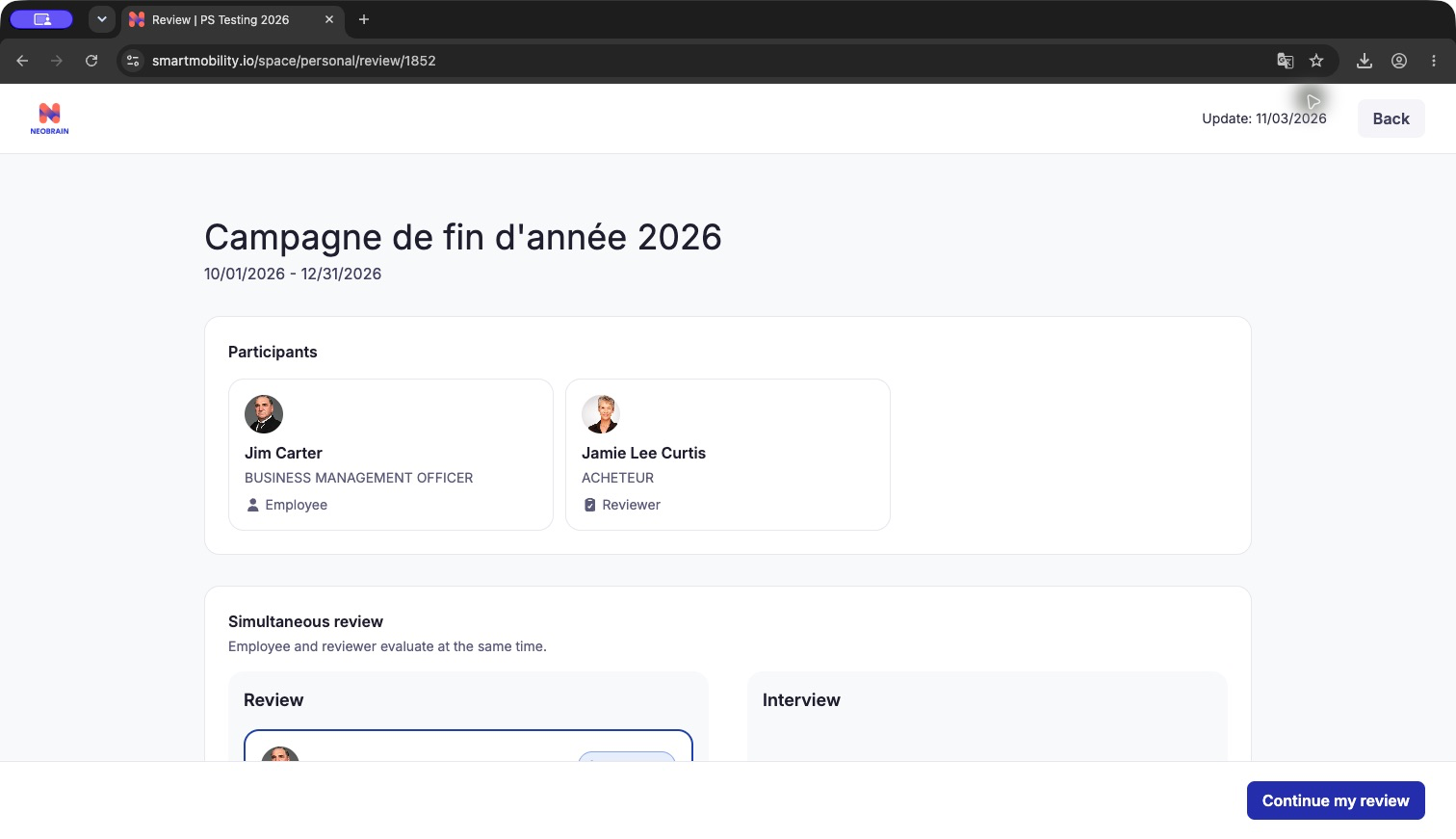
PS Testing, captured 3 November 2026: the introduction shows the simultaneous preparation mode and the action to continue an in-progress preparation. This screenshot establishes the entry step; it does not show a saved development answer.
- Open Profile → Interviews or Interview from the personal workspace. Find the intended campaign, check its deadline and choose See. Read the introduction and preparation mode before starting.
- Start preparation when available and navigate to the section containing the development-plan question. Review the existing shared axes first. Employee and evaluators collaborate on the same plan; avoid adding another copy of an existing learning need.
- Choose an available entry: add an axis manually, review suggested axes, explore training, or import eligible axes from a previous plan. Availability depends on the current plan and configuration. Review generated/imported content before retaining it.
- For a manual axis, select Current job or Career plan, enter a meaningful title and optional description, then create it. The checked client requires title and attachment before enabling creation. New axes start in progress. Review and save changes to existing axes using their edit controls.
- Add tasks when enabled. Select suitable courses from the training catalogue, or enter an off-catalogue learning need when enabled. Supply requested duration, URL or desired start date only where offered. Review the whole plan when selecting training: a course already attached elsewhere may be unavailable for another axis.
- Record your training preference and any justification/comment offered to your role. Evaluator opinions are separate from employee preferences. Check each axis, task and training request for accuracy before leaving the question.
- Resolve request-limit and duplicate warnings. An imported plan can exceed the current cap; remove surplus requests before attempting to finish. If duplicate requests prevent validation, keep the intended occurrence and ask the administrator when removal is unavailable. Local client warnings do not establish that the server accepts duplicates.
- Continue through every other questionnaire section, including conditional follow-up questions. Use save-and-leave when interrupting preparation, then reopen the same review. Correct flagged required answers and finish preparation using the displayed action.
- Return for the interview phase, review the shared plan with the evaluator, and complete any interview-day contribution or final comment. Submit or sign according to campaign settings. Check participant completion, signature and report status separately. See the complete questionnaire journey.
Request training outside the catalogue
Use an off-catalogue request when the available courses do not cover the learning need. The question must allow Off-catalog requests, and you must have access to an editable plan and its training catalogue.
- Open the training catalogue from the development question or the intended axis. Search the available courses first.
- In the catalogue's All tab, when the search has no results, choose Create an off-catalog training request. In the checked client this action is shown in the empty-results state; it is unavailable when catalogue access is forbidden or off-catalogue requests are disabled.
- Describe the learning need: what you want to learn and how it supports the development axis. Description is required. For example: “Practise facilitating cross-team workshops to support my project coordination responsibilities.”
- If offered, select a duration, enter the course/provider URL and choose a wished start date. A supplied URL must start with
http://orhttps://. These fields appear only when enabled in the question settings. - Choose Continue. Review any similar courses proposed from the catalogue. Select a suitable suggestion to add that catalogue course, or choose Keep the custom request to retain the need you described.
- If no matching course is proposed, review the request summary, return to edit it if needed, then use the save action. Wait for saving to finish and confirm that the request appears in the intended development axis.
- Review your preference and any comment fields offered, and resolve the plan's request-limit warnings before continuing through the questionnaire. The evaluator reviews the request through the configured opinion controls; recording it does not approve expenditure or enrol you in training.
Closing an unfinished request can prompt you to continue editing or abandon it. If saving fails, check the description, URL, configured request cap and current editing rights before retrying.
Settings screenshot
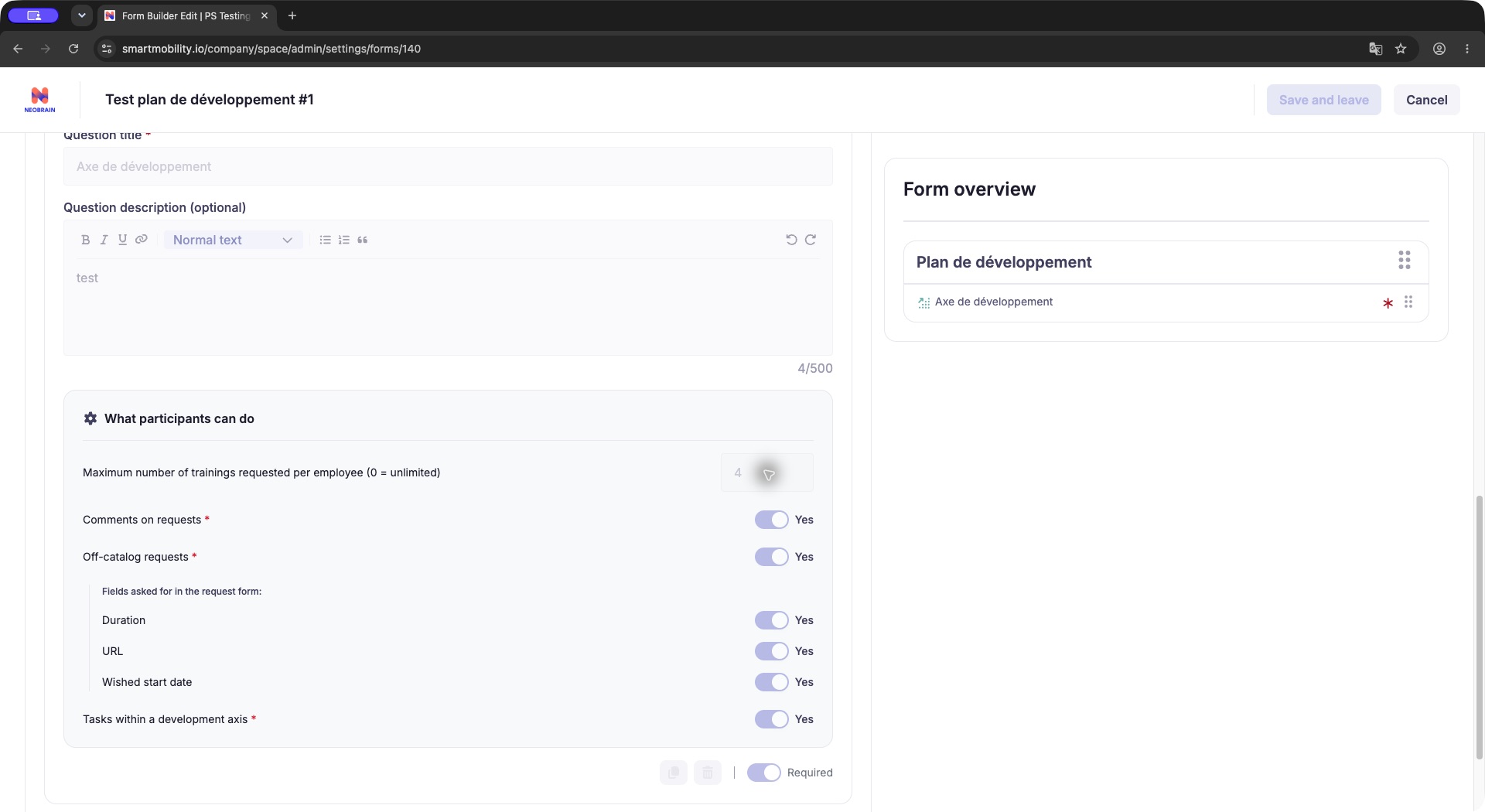
Observed application screenshot from the existing documentation capture: the What participants can do panel enables off-catalogue requests and controls which additional fields appear. This read-only form shows an example request cap; it is not a universal default. The screenshot shows configuration, rather than the participant request dialog.
The participant sequence above is Observed in application for the successful custom-request path on 3 November 2026 and Verified in code in DevelopmentTrainingCatalogModal.vue, DevelopmentOffCatalogModal.vue and the English locale labels under the nextgen review development renderer. The request dialog, catalogue suggestions and saved pending request were observed on the fake platform; labels may use the organization's training terminology.
Form and section overview
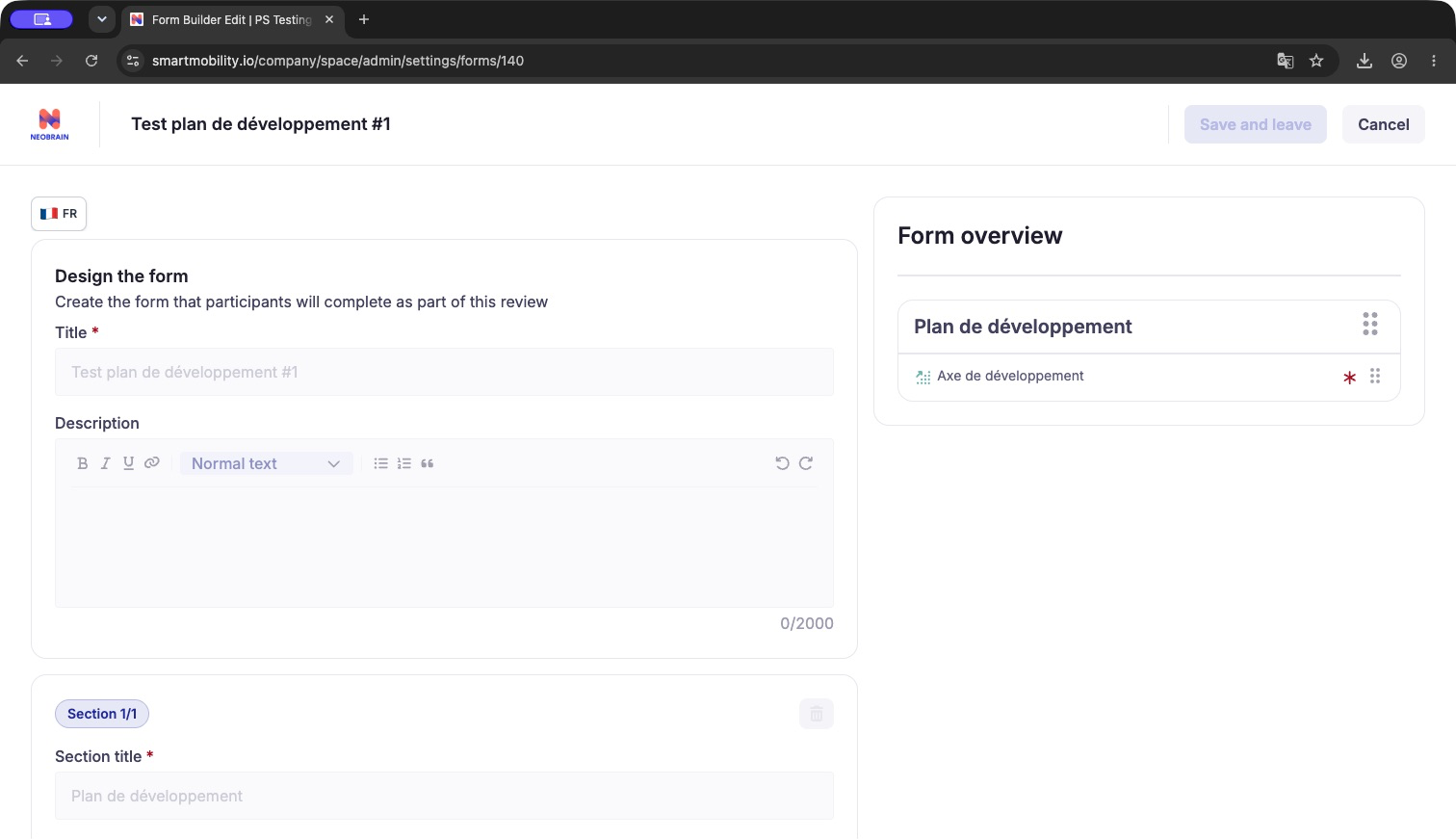
Captured in Chrome on 3 November 2026. The overview identifies the section and development question used by the campaign. This form is read only; it exposes no enabled participant preview action.
Screenshots: development-plan walkthrough
Captured on the fake PS Testing platform on 3 November 2026. The example content is synthetic. These screens illustrate the employee preparation path; evaluator review and final signature are separate steps.
1. Open the development question
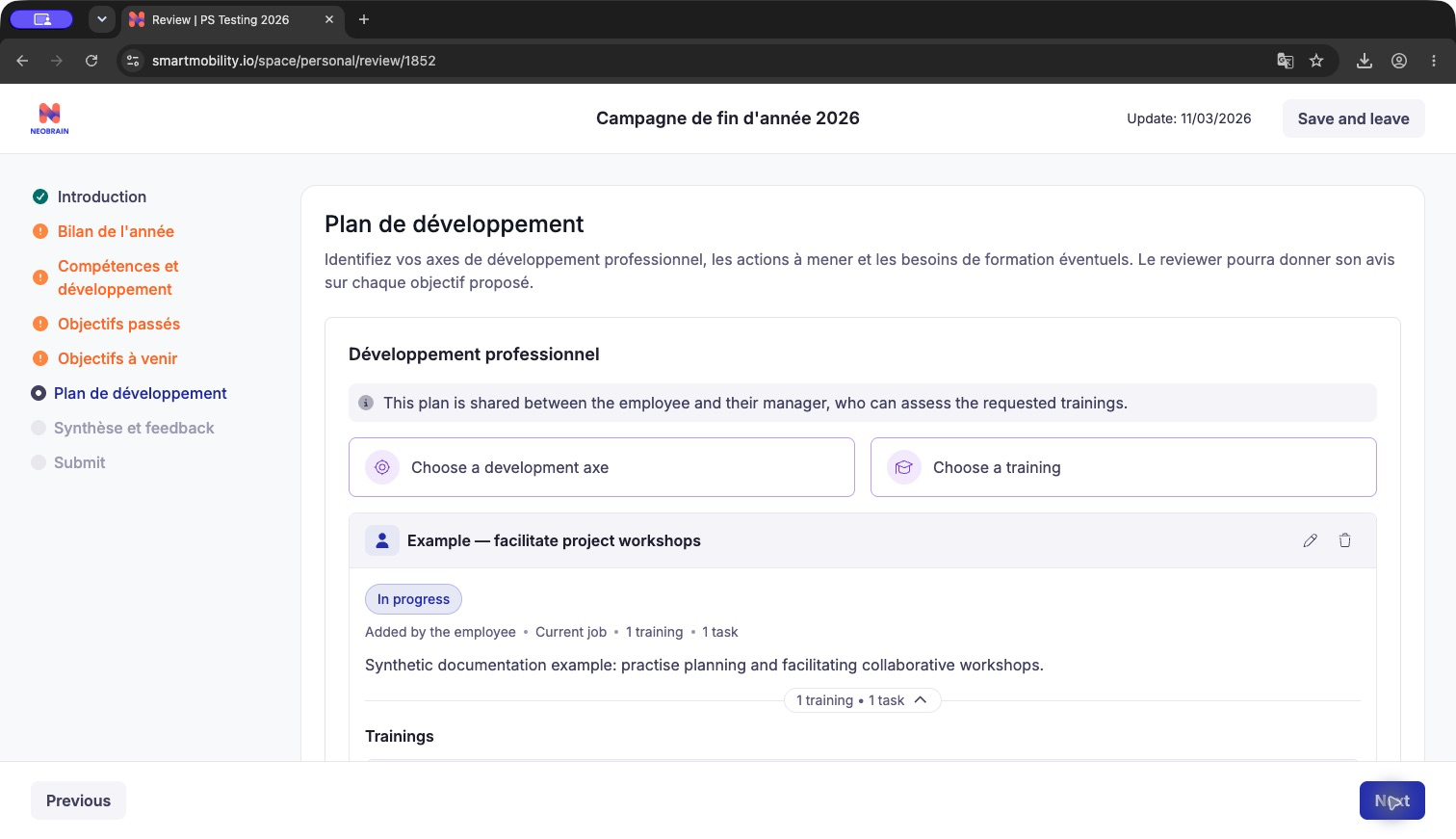
The shared-plan notice and suggestion/training choices appear inside the interview. This refreshed capture includes the previously saved example axis.
2. Create a development axis
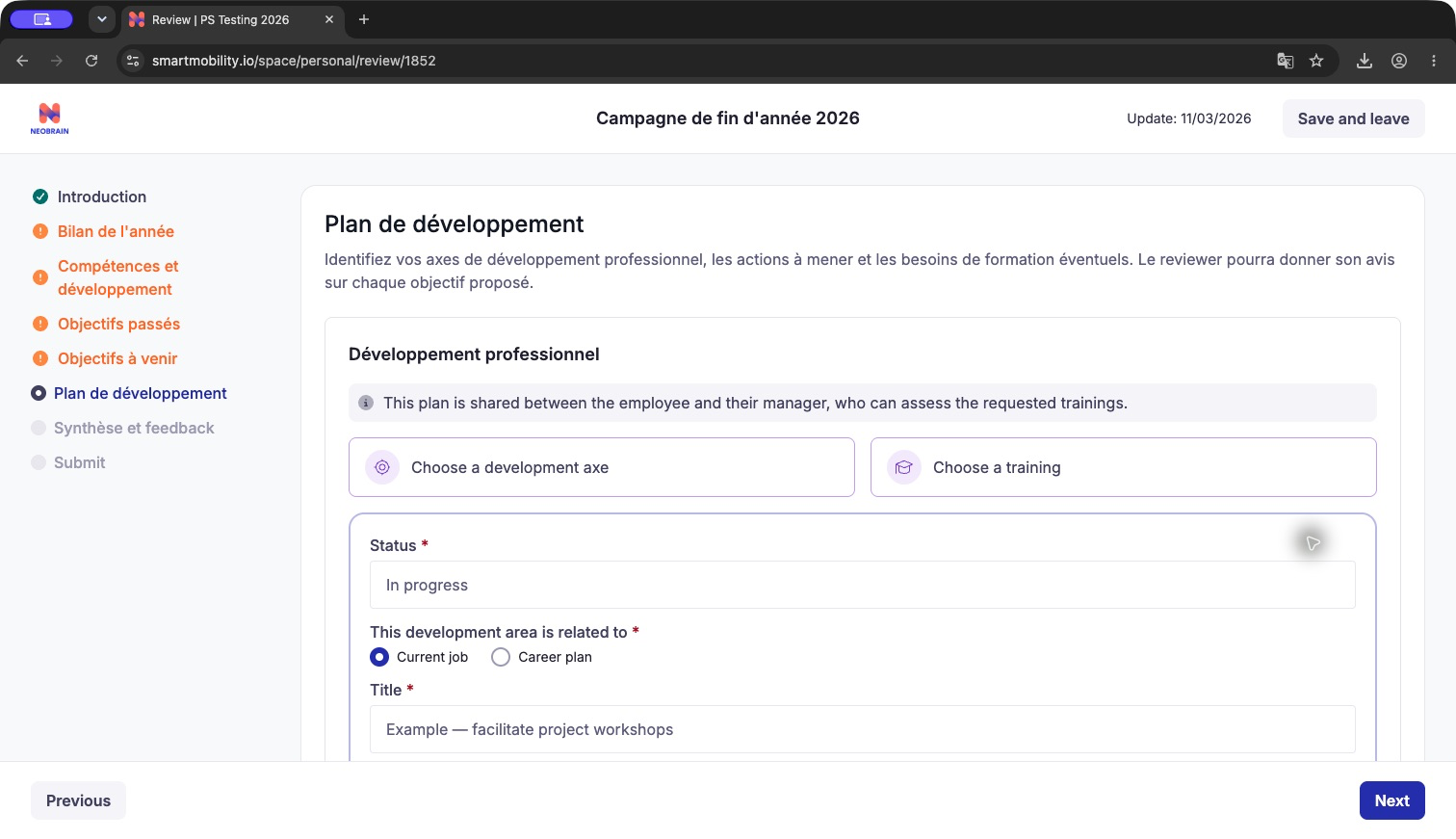
Choose the attachment, enter a title and optional description, then save. This refreshed capture shows the existing synthetic axis in its editor; status is available when editing.
3. Review the saved axis
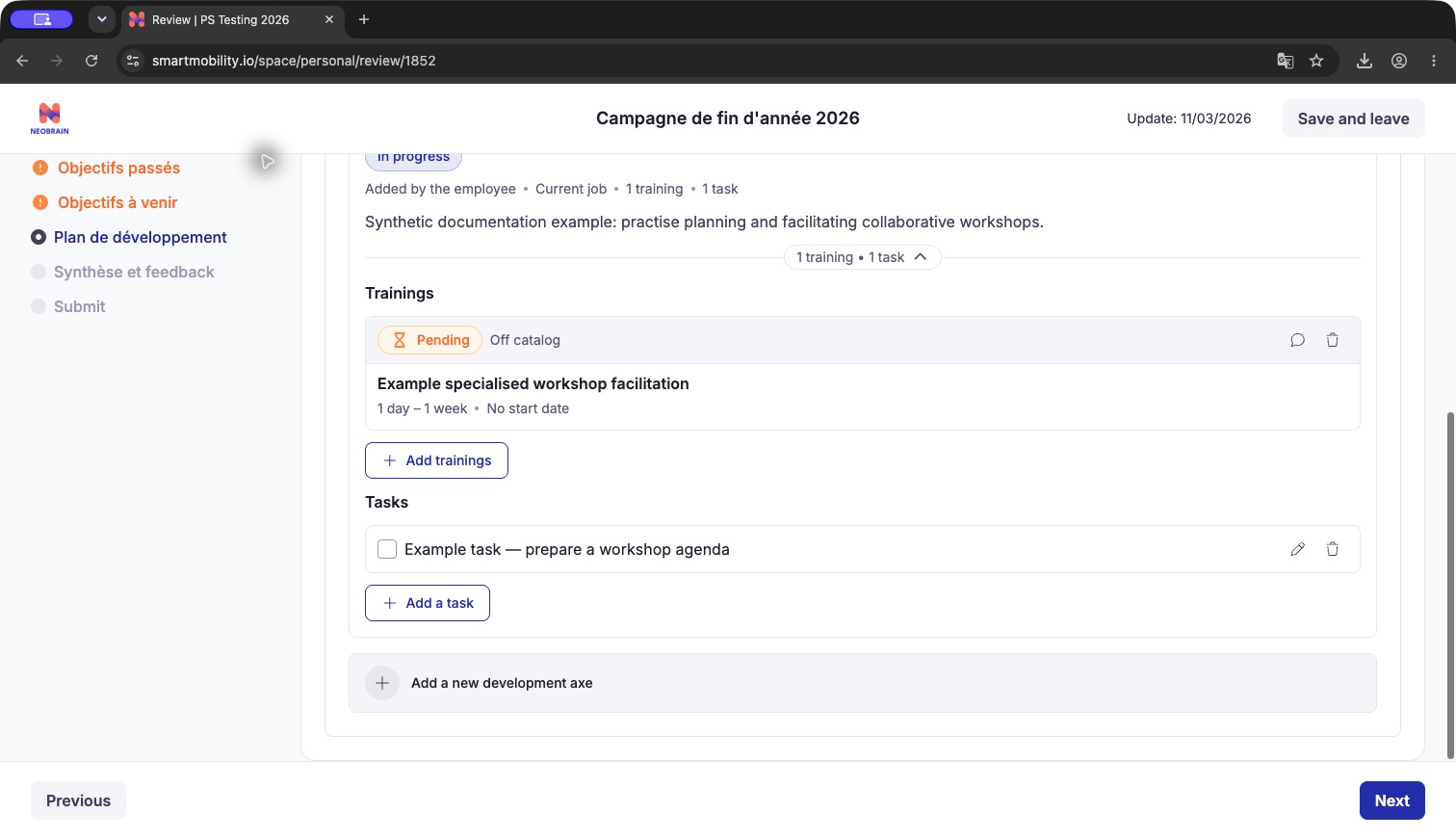
The saved card shows its status, author role, attachment and training/task counts.
4. Add a task
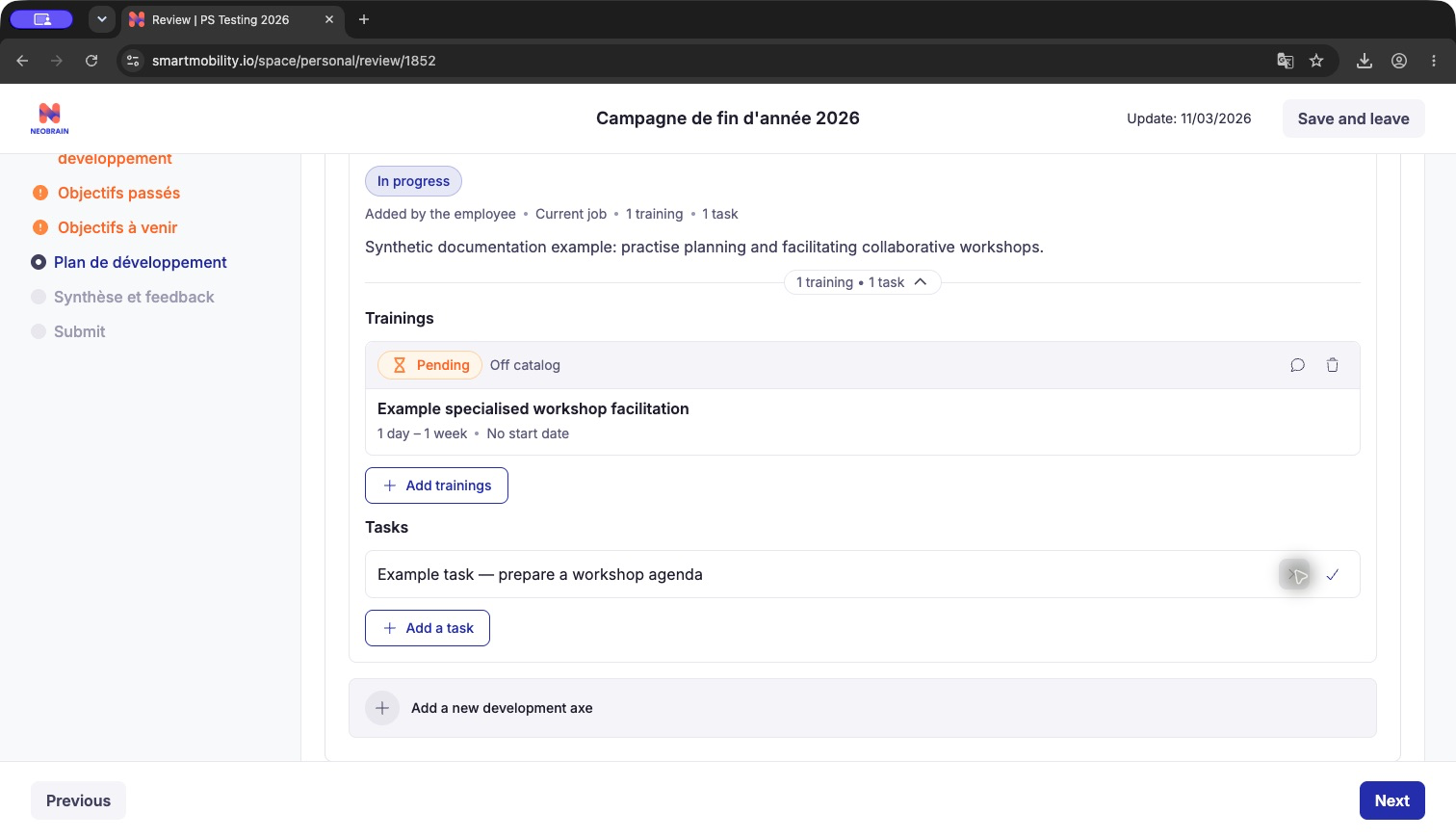
Describe the task and save it under the axis. This refreshed capture shows the saved example task in its editor. Saving the axis alone does not create a task.
5. Browse training
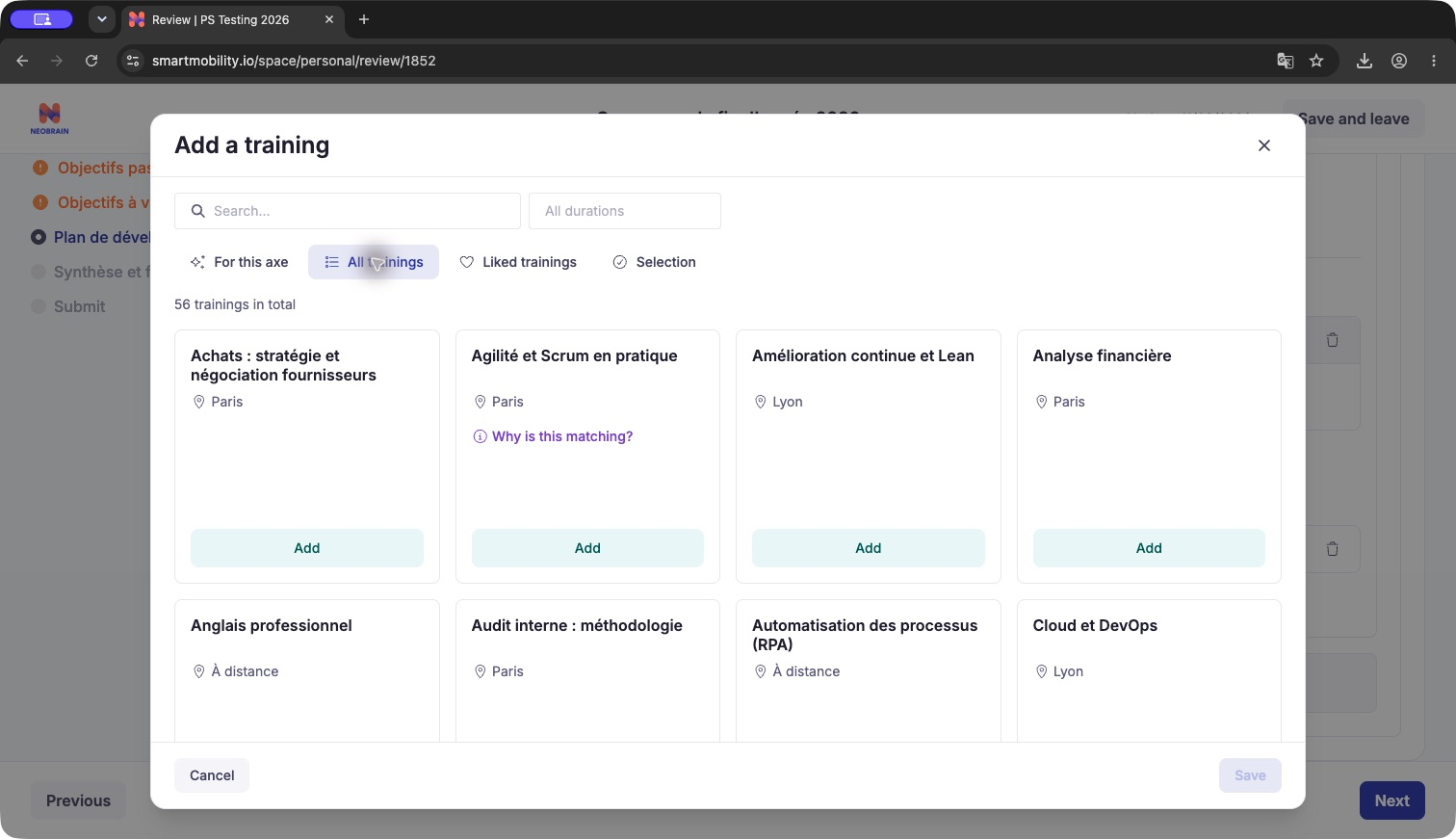
Open Add trainings to browse courses, inspect matches and select an appropriate course.
6. Search for an unavailable course
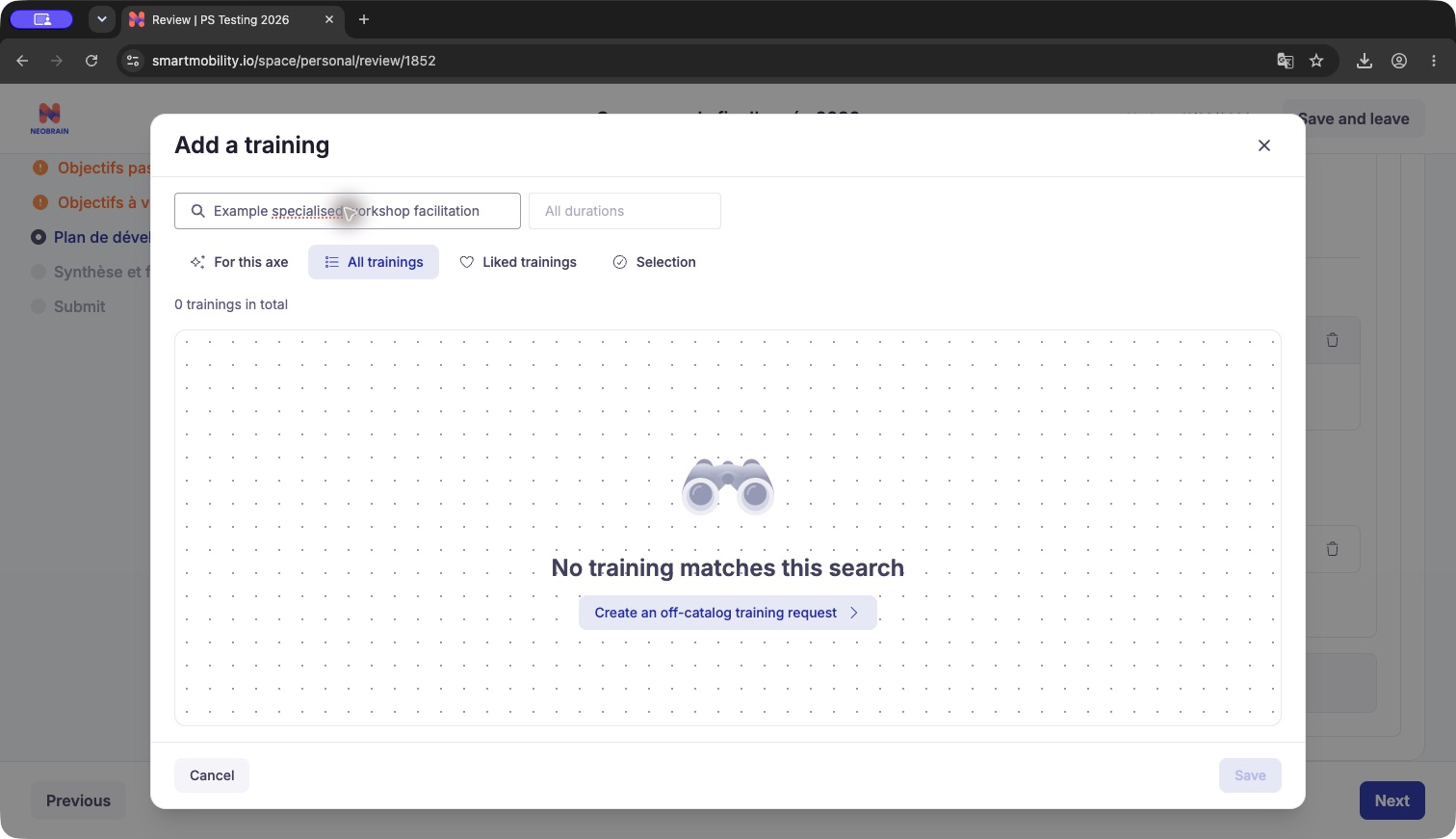
The All trainings empty-results screen offers Create an off-catalog training request.
7. Describe the custom training need
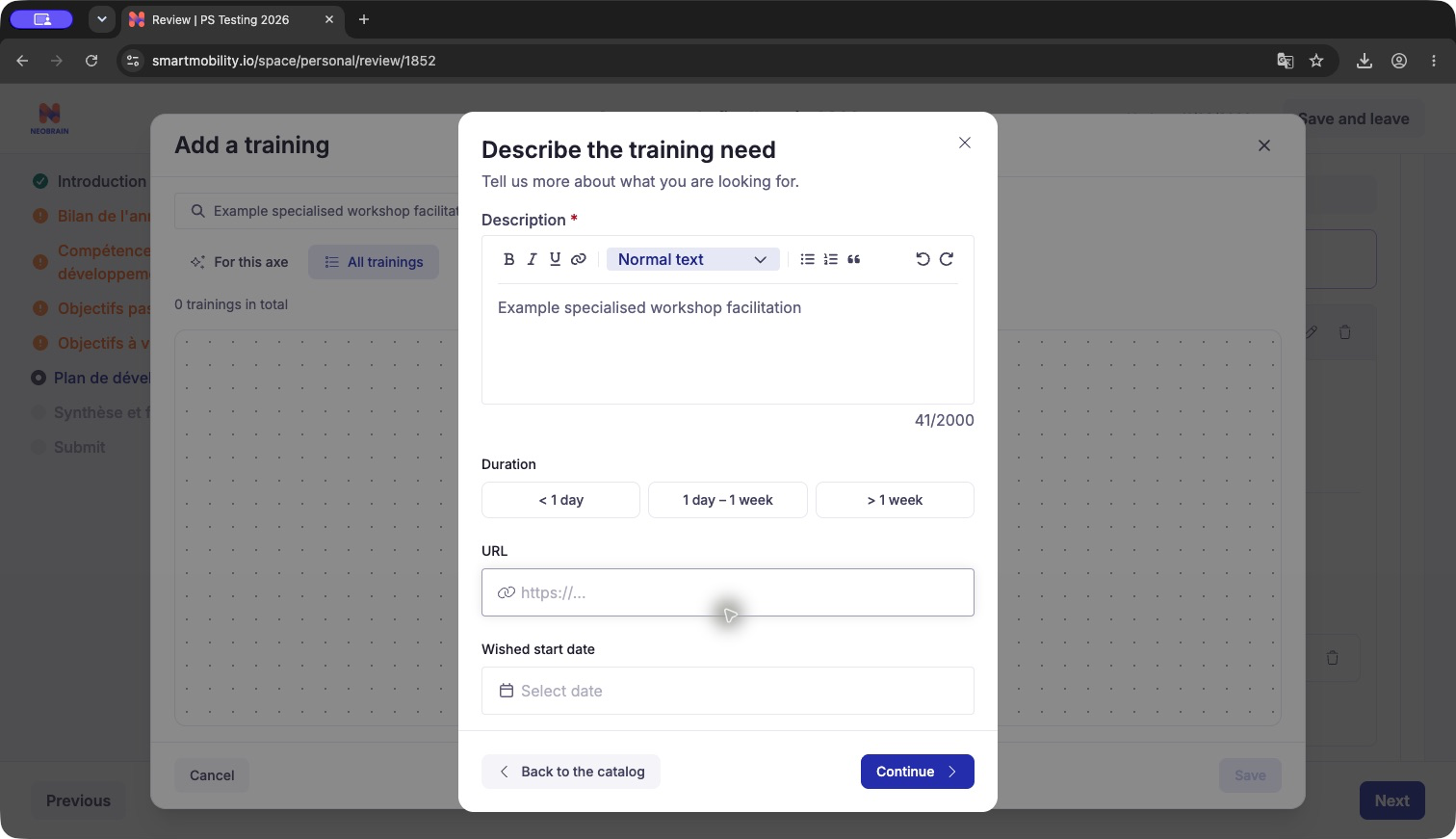
The request includes a required description and the enabled duration, URL and wished-start-date fields. The search text is carried into the description.
8. Review similar catalogue courses
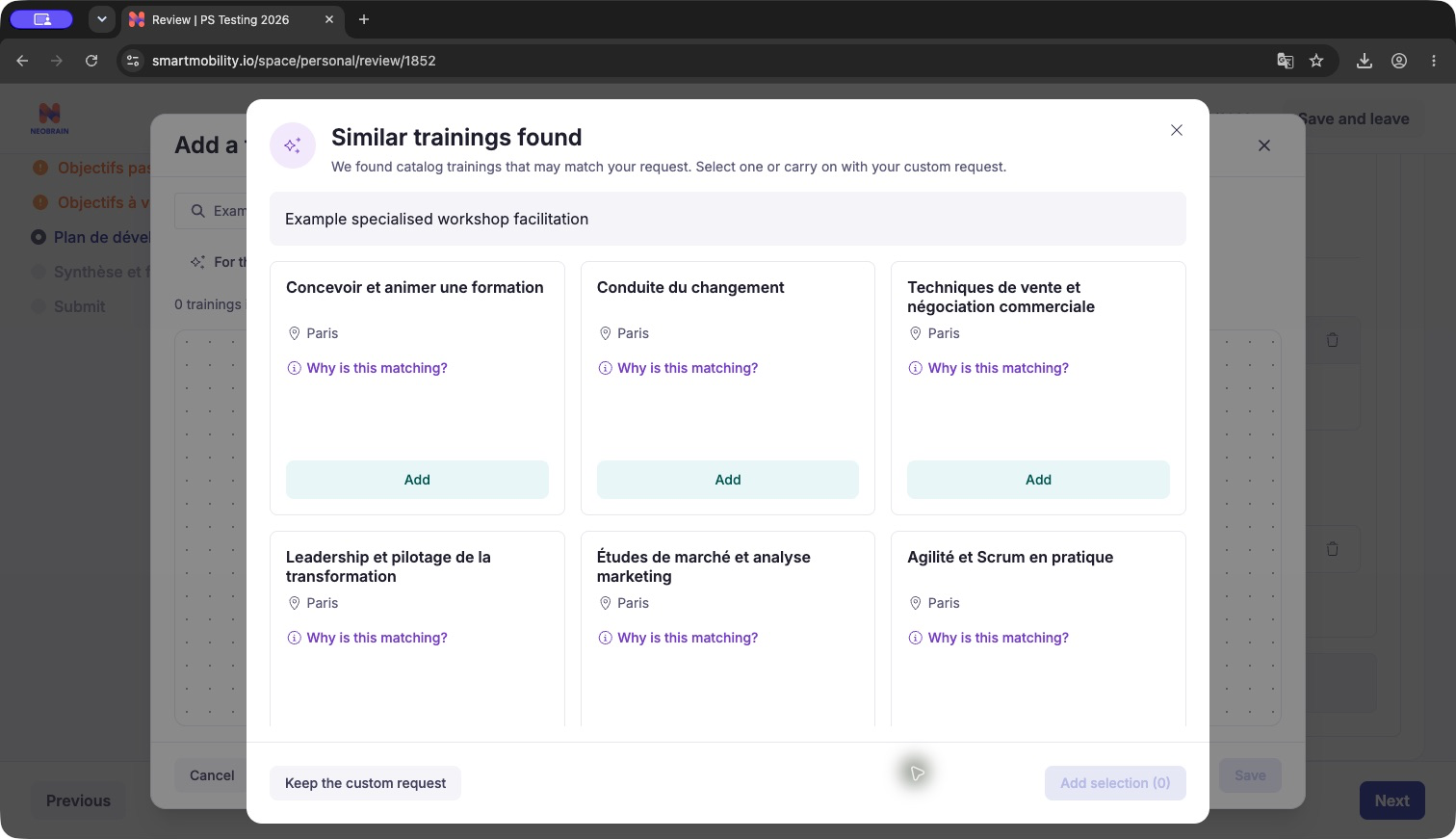
Choose a suggested course or keep the custom request. These suggestions are from the fake-platform walkthrough and are not recommendations for a real employee.
9. Confirm the request was saved
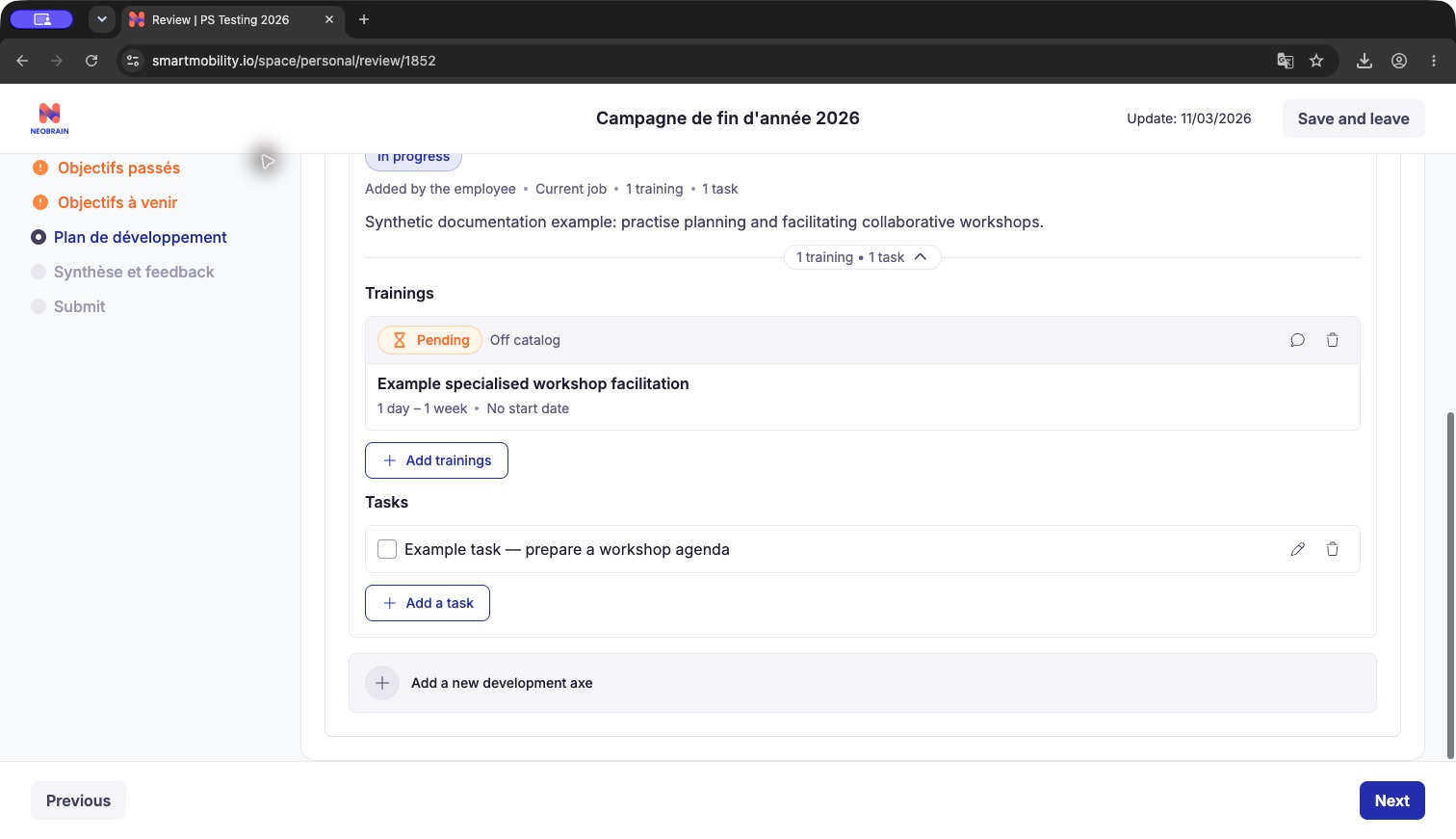
The axis now shows one training and one task. The custom request is marked Pending and Off catalog; this does not indicate enrolment or approval.
10. Save and leave
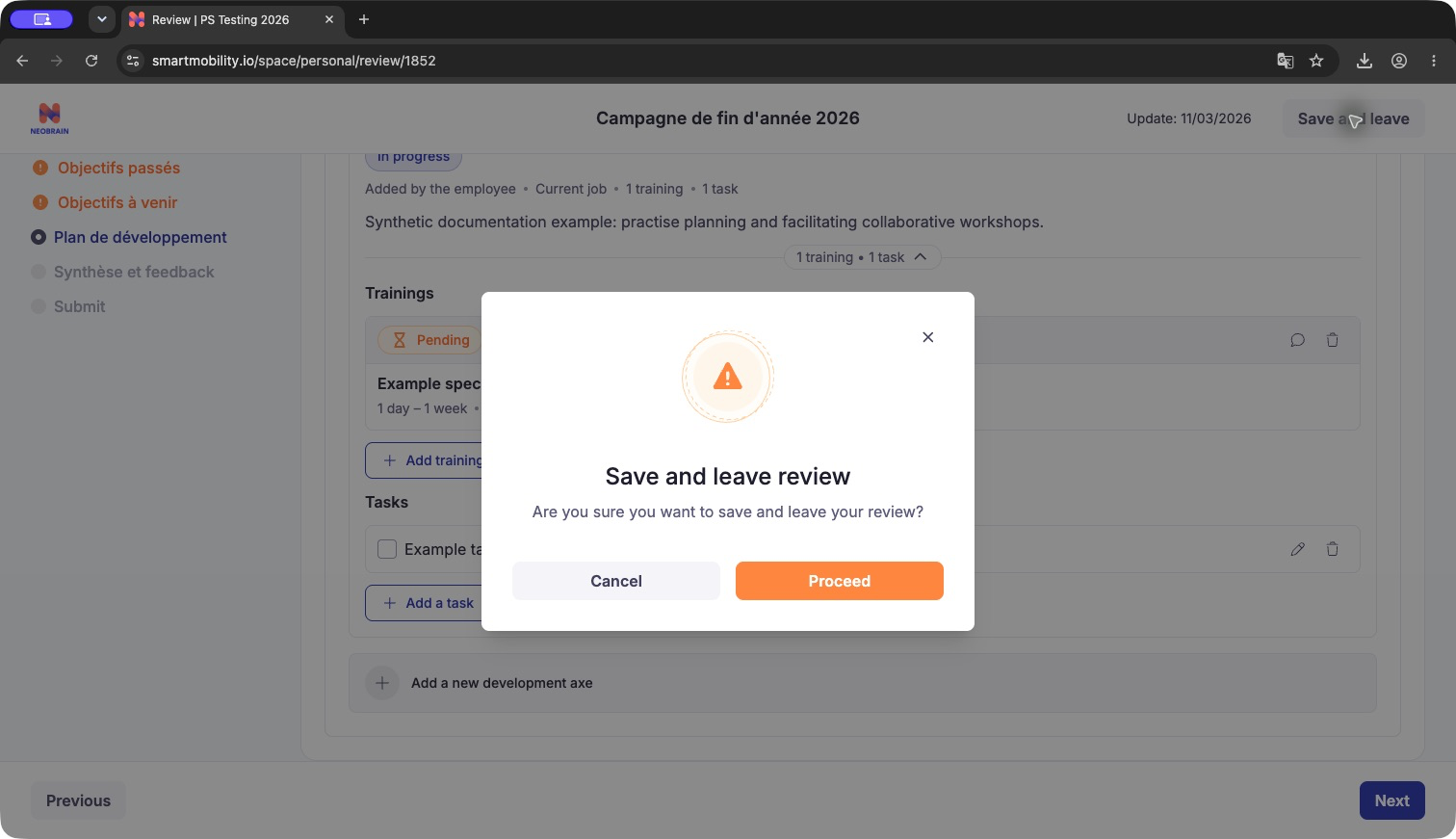
Confirm Save and leave to interrupt preparation. Return to the same review to continue answering the remaining questionnaire sections.
11. Resolve required answers before submission
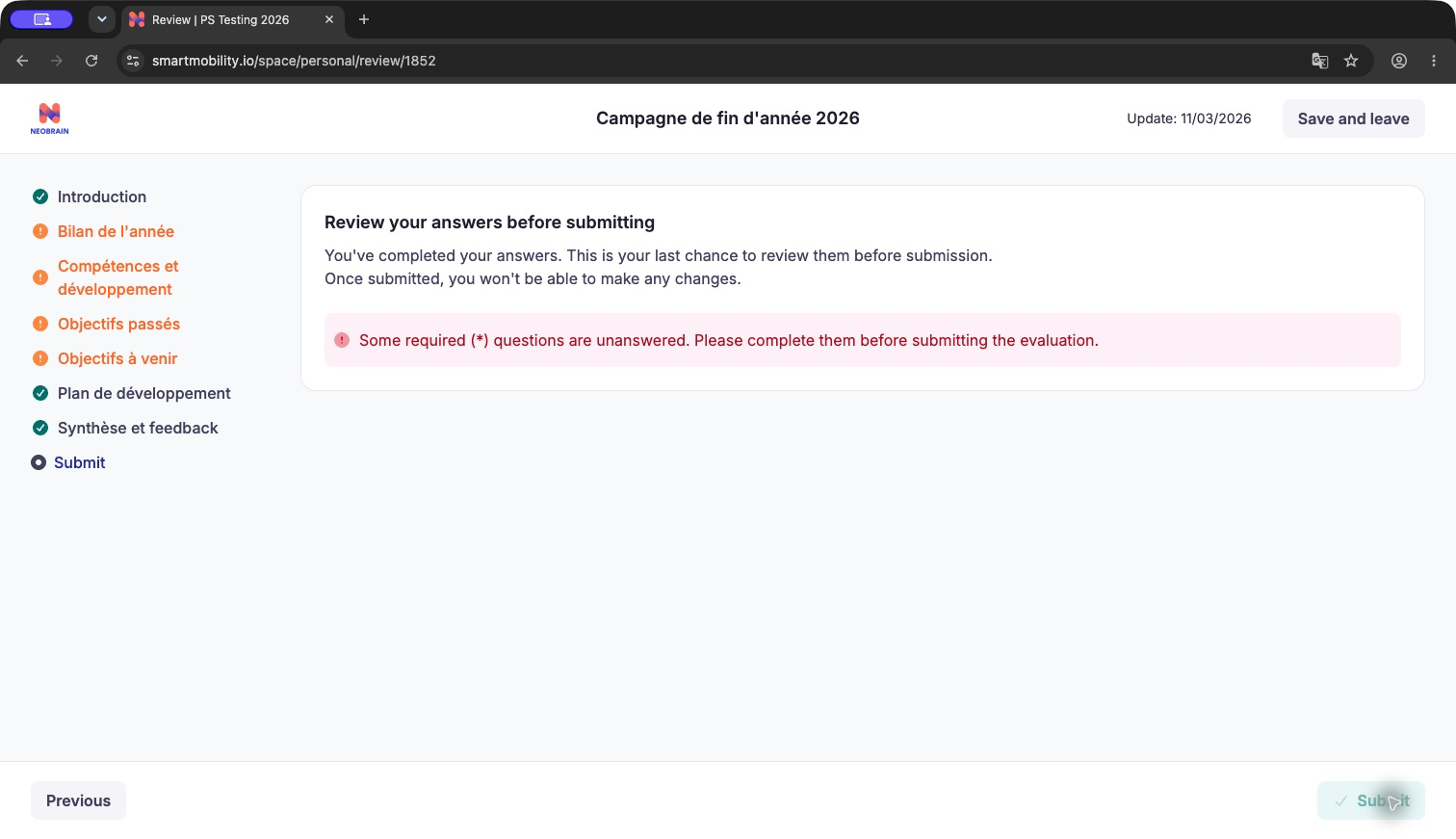
Observed in the active fake review: the final preparation screen reports unanswered required questions and disables submission. Saving the development plan does not complete the other questionnaire sections. Return to the flagged sections and supply the missing answers before submitting.
12. Recognize a completed interview
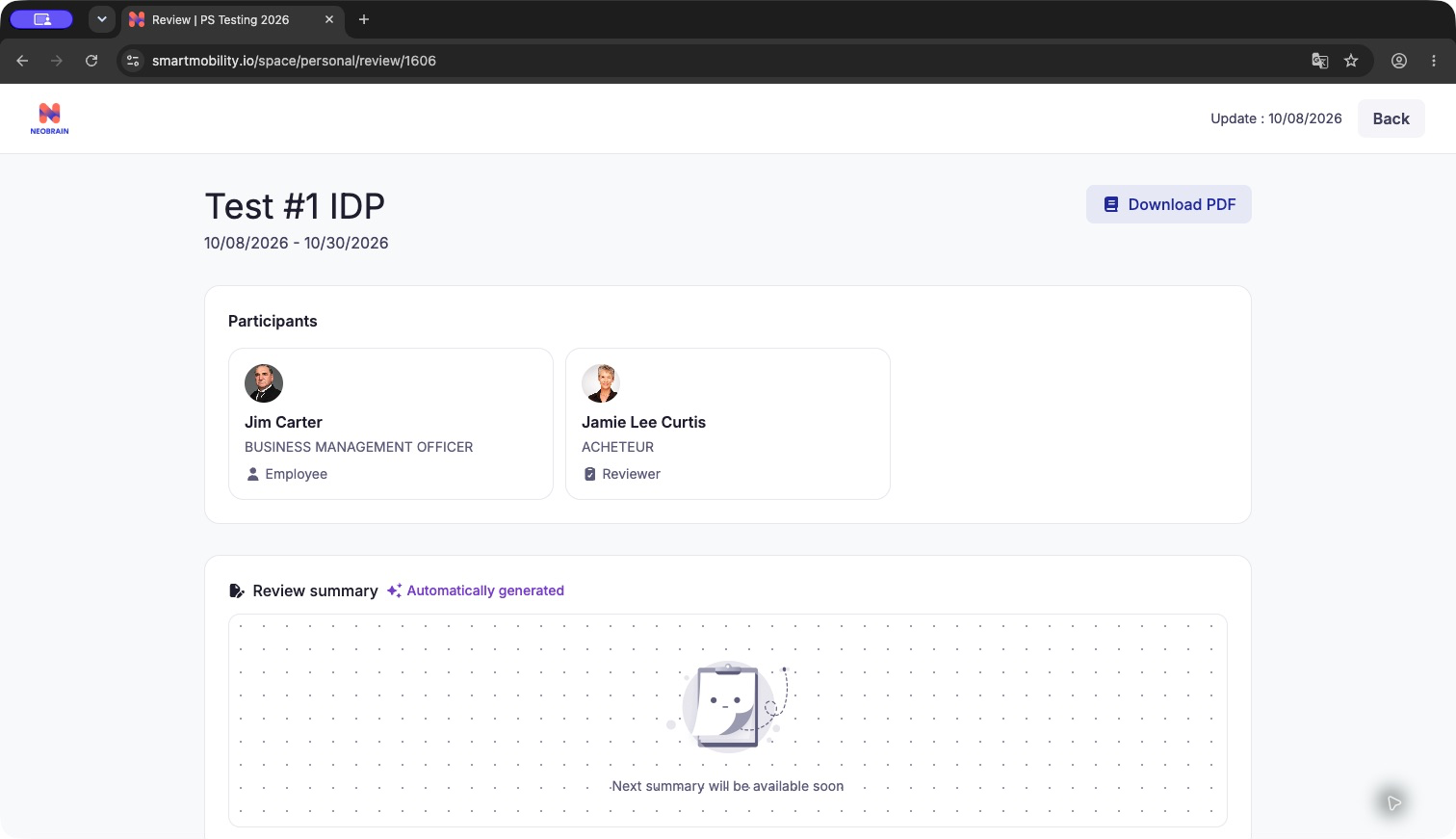
This is a separate, previously completed test review. It illustrates the final status display; the active screenshot example was not submitted or signed to produce this screen. An automatically generated summary may still be unavailable even when the interview is done.
Evaluator: review and finalize the shared plan
Select the correct account and space
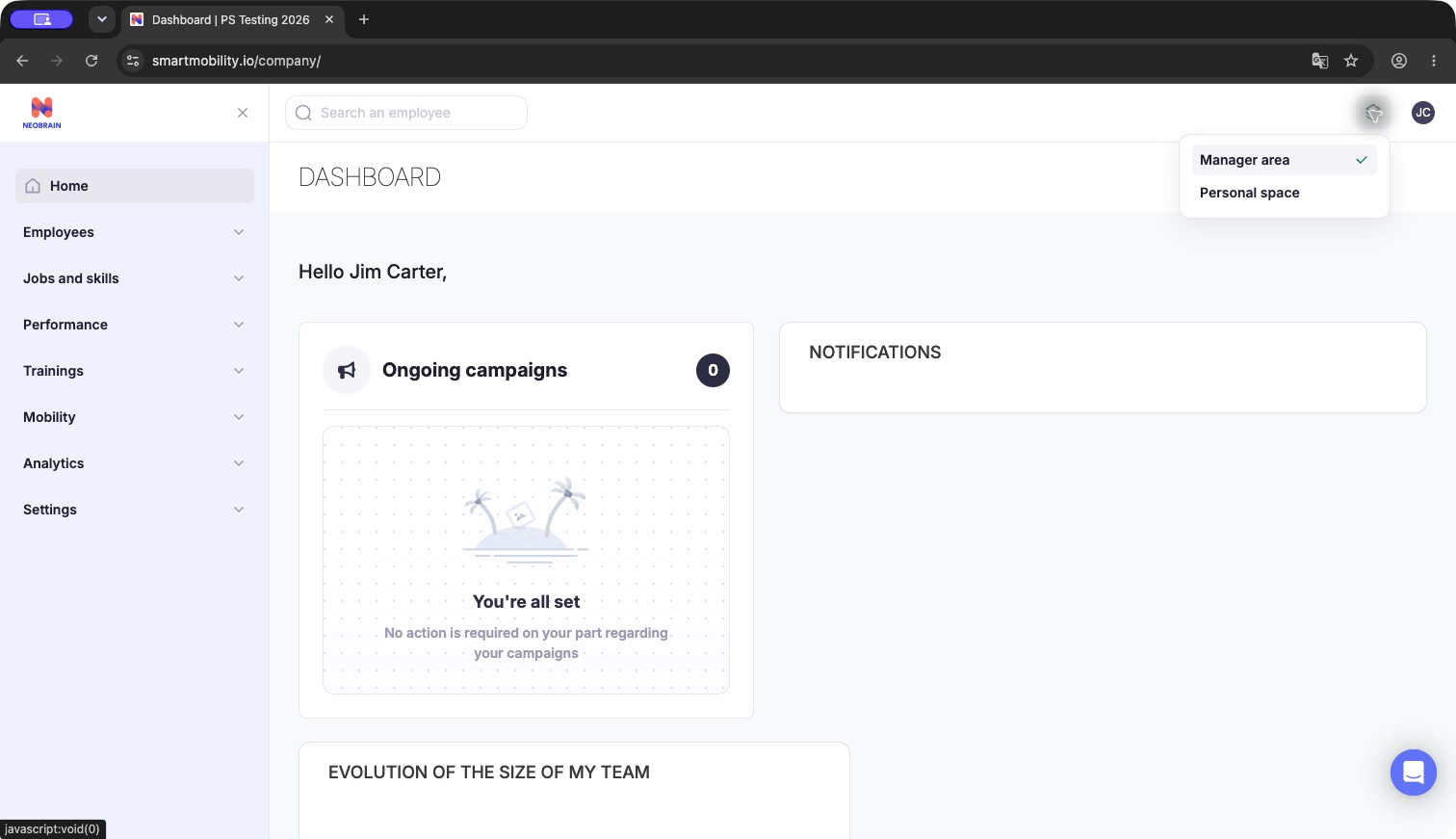
Observed with the manager/employee test account: use Spaces → Manager area for assigned reviews, or Personal space for your own interview. Switching space preserves your identity; it does not make you another employee's assigned evaluator. My reviewees showed no assigned campaigns for this test account.
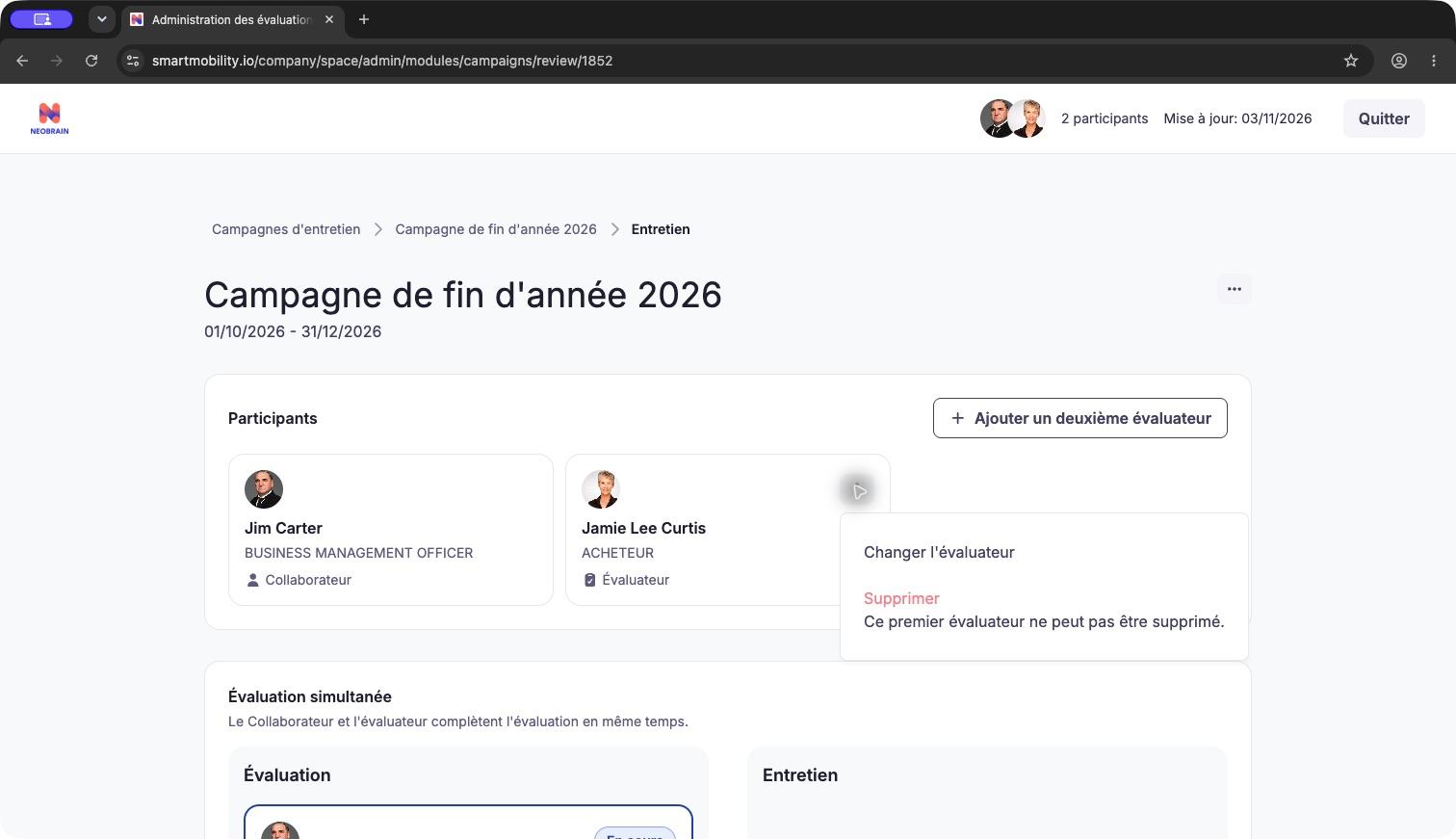
Observed with the administrator account: the evaluator menu offers Changer l'évaluateur (Change evaluator). The primary evaluator cannot simply be removed. Choose an eligible replacement and confirm only when an assignment change is intended. The selector was inspected and canceled without changing this review.
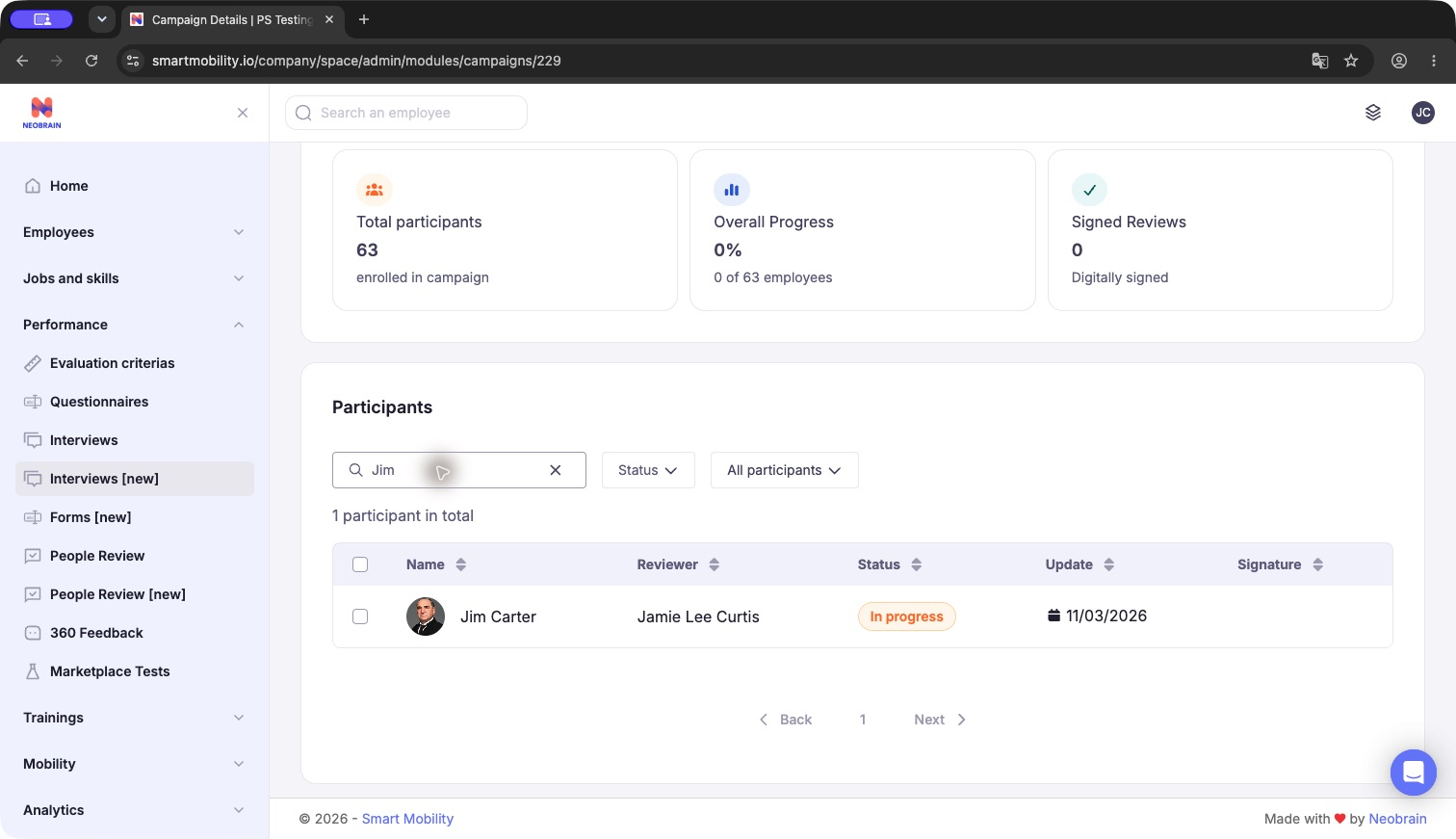
Open Performance → Interviews [new], select the campaign, and search its participant list. The filtered row shows the employee, assigned reviewer, review status and update date. Opening this row does not change the logged-in user's participant identity.
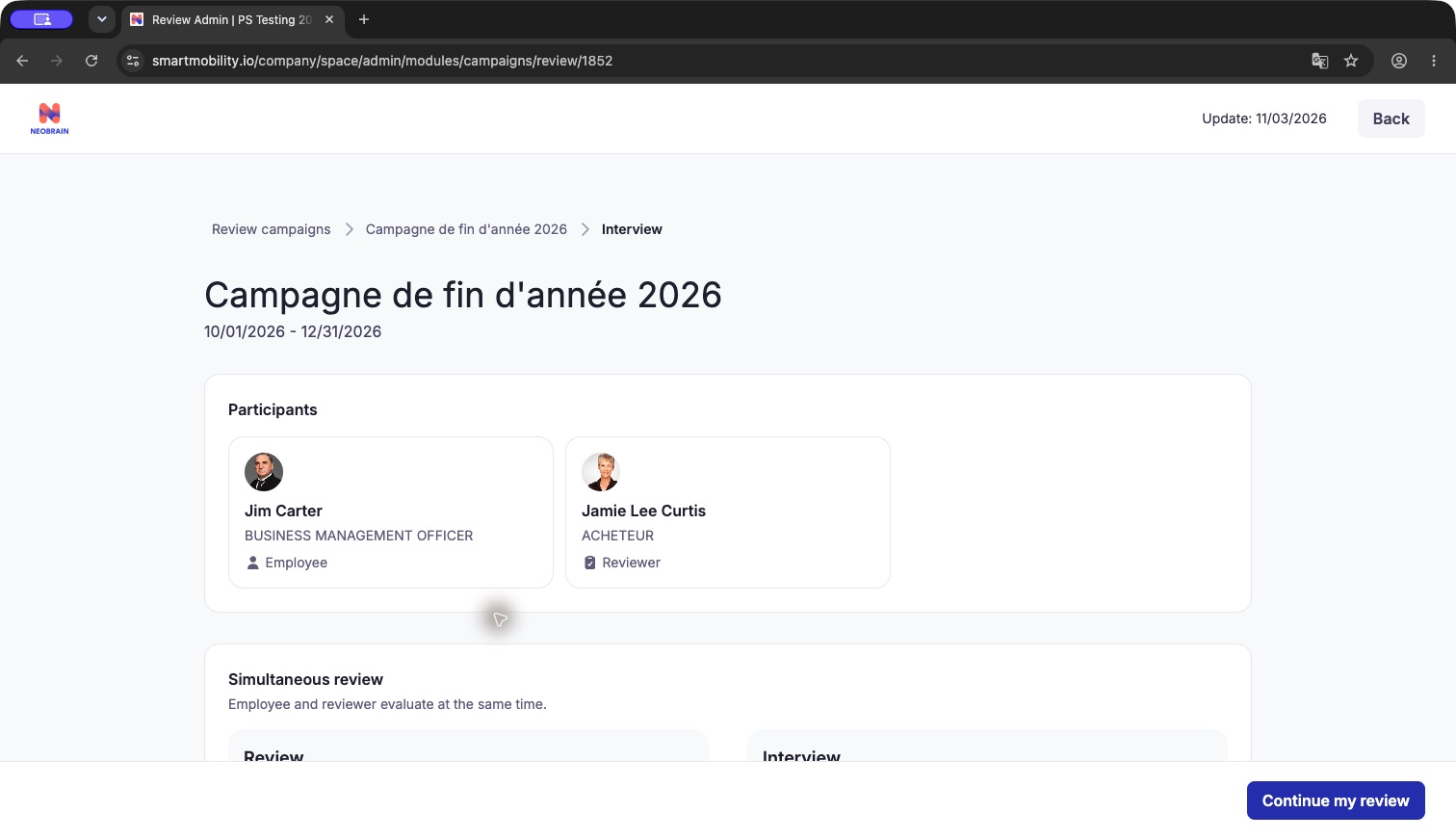
Observed on the fake platform: the manager route displays the same test review, with employee preparation in progress and reviewer preparation not started. The current account is still identified as the employee. Manager navigation alone therefore does not establish permission to enter the assigned reviewer's opinions.
- Open the assigned employee review from the manager workspace and confirm the employee, campaign and your evaluator assignment.
- Follow the configured preparation sequence. Review existing axes and employee requests, then contribute to the shared plan through the controls available in your current phase. Save changes explicitly where an axis/task editor offers a save action.
- Review training suitability and provide the permitted opinion and justification. The checked backend restricts opinion changes to the main evaluator; additional evaluators should use only the controls authorized for their assignment. Confirm tenant behavior before relying on second-evaluator opinion editing.
- Resolve excessive or duplicate requests with the employee. Verify tasks, attachments and training details; complete the evaluator's other required questionnaire answers and finish preparation.
- During the interview, agree on the final axes and actions with the employee and complete the available final comment, submission or signature step. Evaluator refusal is unavailable in the checked review workflow.
- After completion, check whether the expected axes appear in the employee's profile. Use profile status actions for continuous follow-up where authorized; report missing or changed content to the campaign administrator rather than assuming the interview and profile synchronized successfully.
Results and validation
| Result | What to check |
|---|---|
| Axis created or edited | The saved card shows the intended title, attachment and content. Reopen the review to confirm persistence. |
| Training requested | The request appears under the intended axis, within the configured plan-wide limit. |
| Preparation complete | Required answers across the whole questionnaire validate, including active conditional branches. |
| Interview complete | Each participant has completed their required submission/signature step. |
| Profile ready for follow-up | Expected axes, tasks and training requests are present after the applicable synchronization step. Verify before updating status. |
Do not assume a common title length, unlimited-request value or identical opinion rights across deployments. Source and deployed-setting differences are recorded in the technical guide. When saving fails, retain the entered content, read the message and correct the specific field or request constraint before retrying.
Redesign: build the plan during an interview
Evaluator screenshots: assigned review and training opinion
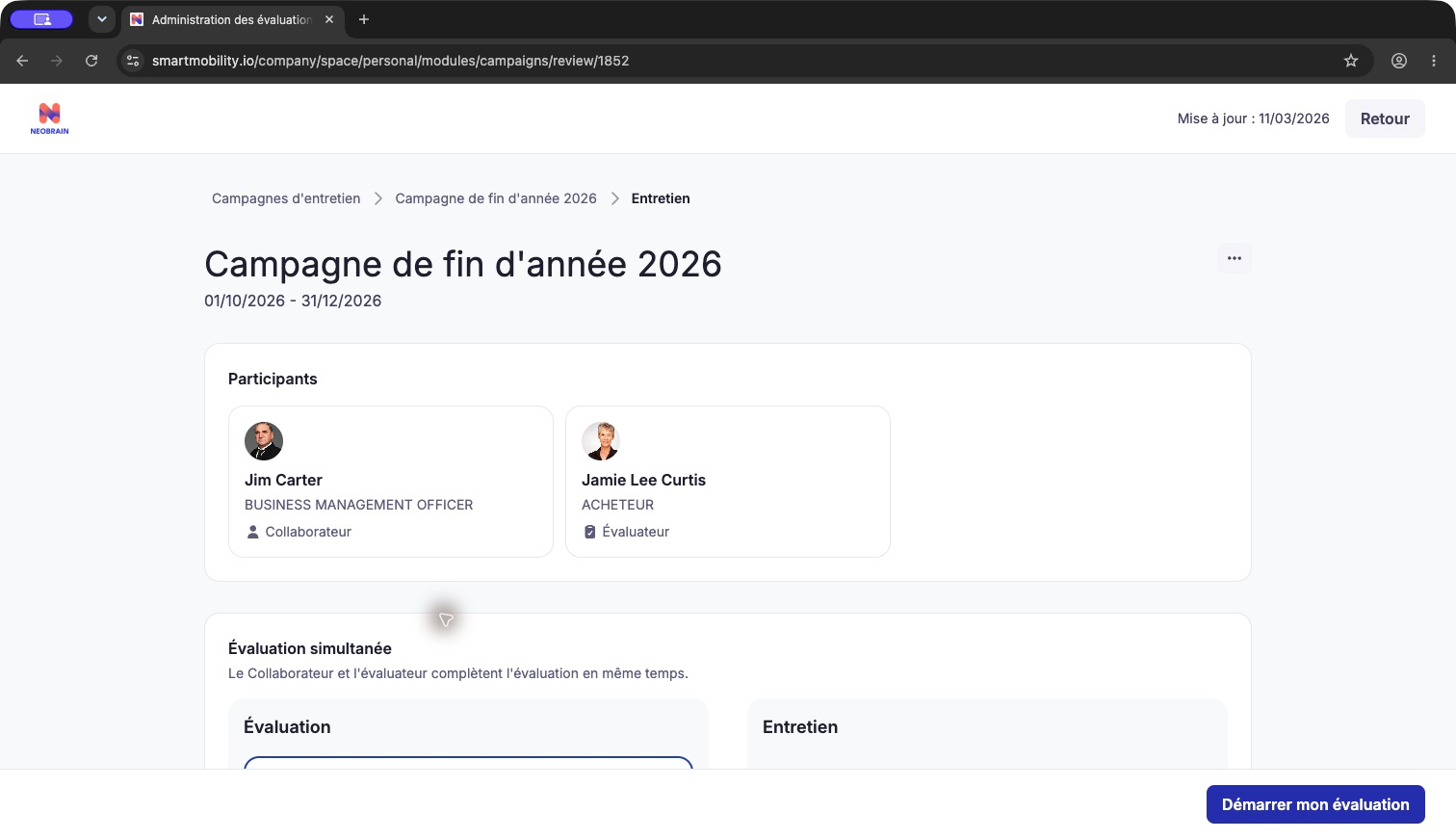
Observed with the assigned reviewer account: open the campaign in the manager workspace, search for the employee, open their review and start the evaluator preparation. The invitation explicitly identifies the participant as evaluator.
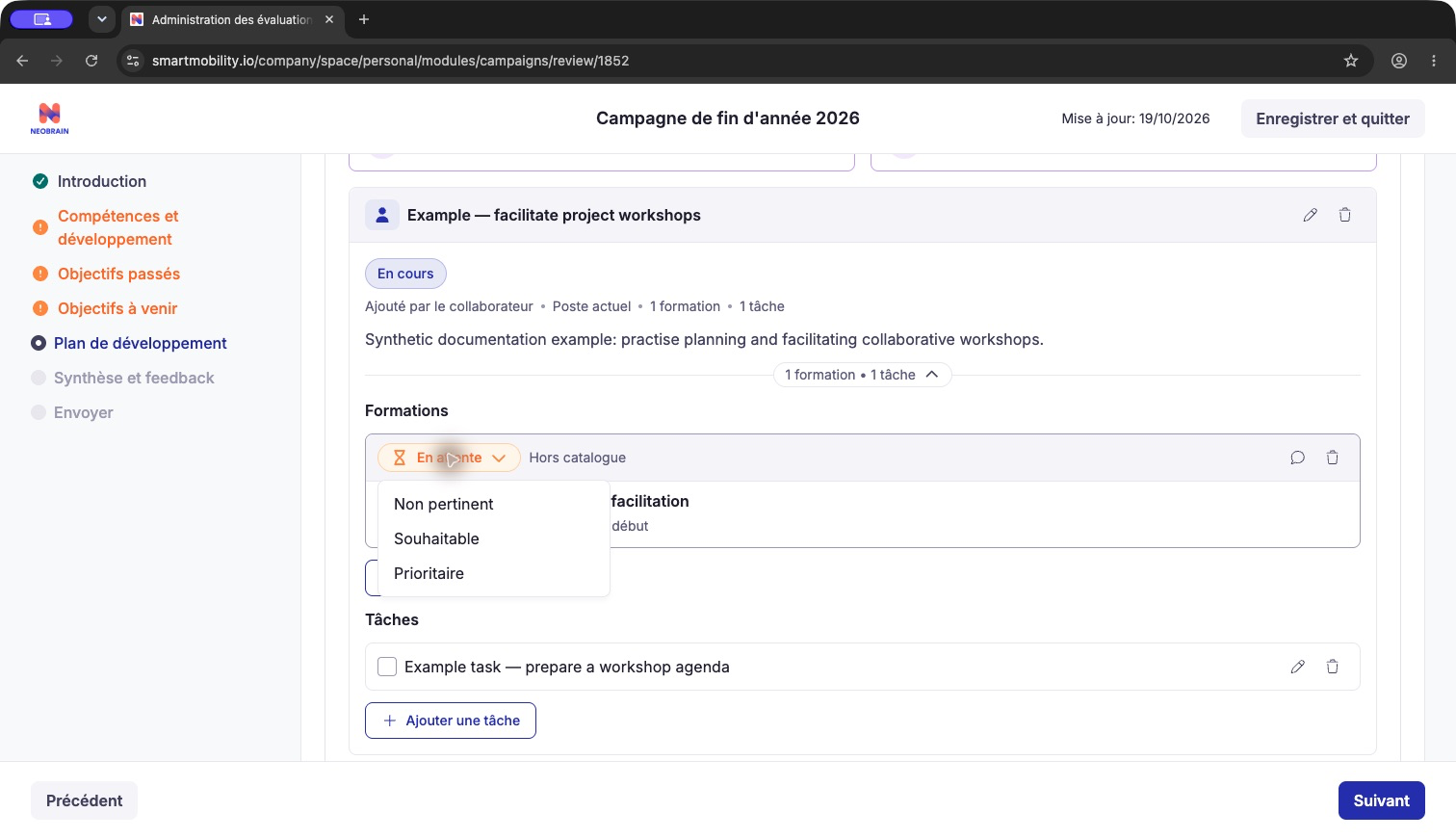
In the shared development plan, open the training request's status menu. This configured form offers Non pertinent (not relevant), Souhaitable (desirable) and Prioritaire (priority). These are this form's opinion labels, not universal choices.
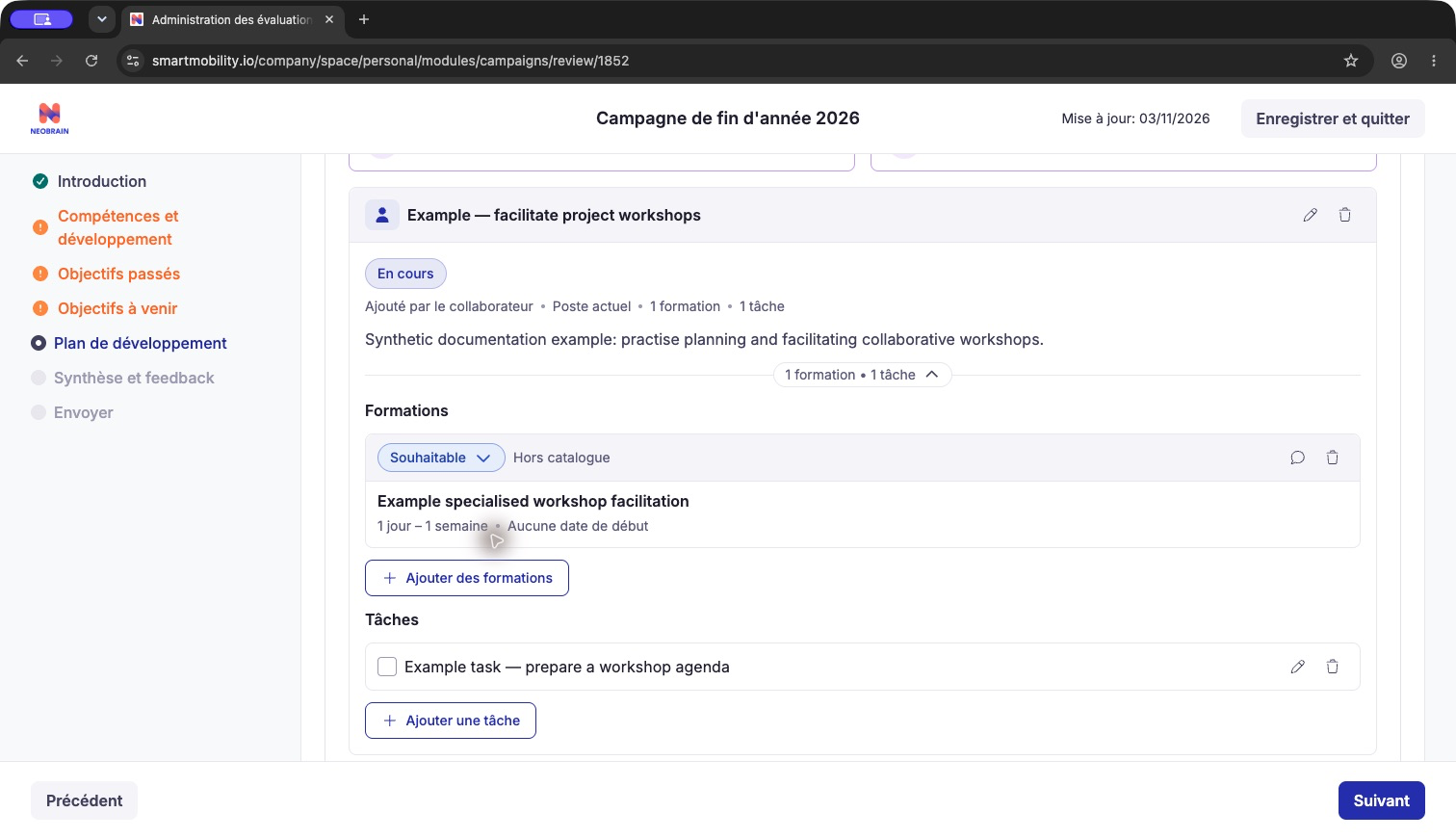
The synthetic request was qualified as Souhaitable. The reviewer sees the employee-created axis and task in the same shared plan. An opinion qualifies the request; it does not enroll the employee in a course.
Past and future performance objectives, key results, weighting and objective-validation screenshots are documented in Objectives — Redesign.
- Open the Development plan question in your interview. The campaign determines whether employee and manager contributions happen together or in separate steps.
- Review any existing in-progress axes carried into the plan. If no suitable axis is available, use a suggestion or create one manually when those options are enabled.
- For manual creation, choose an attachment such as the current job or a career plan when offered, then enter a title and any optional description. Review the fields and validation shown in your form.
- Add tasks and training requests to an axis when those options are available. Follow the task status shown in the plan.
- Use the training catalogue opened from an axis to find and review courses. Existing selections or role permissions may limit which courses you can add.
- If off-catalogue requests are enabled, describe the learning need and complete the fields required by the form. Review any catalogue suggestions before choosing a course or keeping the request.
- Review duplicate warnings and any request limit shown before continuing. Resolve validation messages in the plan; the form indicates what needs attention.
Suggestions depend on the information available in the employee profile, job and training catalogue. Review proposed axes and courses before adding them to the plan.
Redesign: collaboration, evaluation and deletion
The employee and authorized evaluators collaborate through the campaign steps. Available editing and removal actions depend on the role and the content’s current state. Follow the controls shown in the plan; locked content may need its owner or an administrator to update it. Comments are available only when enabled by the campaign.
Where training evaluation is enabled, an evaluator can qualify a request using the available choices. This qualification does not itself enroll the employee or confirm budget or course attendance. The campaign configuration determines which evaluators can provide or change an opinion.
Deleting an axis may also remove its tasks or training requests. Review the confirmation and affected content before proceeding. Recovery options depend on the campaign and plan state.
Redesign: signature and continuous follow-up
When the campaign is completed and signed, its development-plan results may be reflected in the employee profile according to the campaign configuration. Subsequent profile actions depend on the employee’s role and permissions.
The profile may group axes by status. Completing an axis records its development-plan state; it does not confirm that associated training was attended or completed.
For implementation differences between the two journeys, see the technical guide.
Development-plan question settings
In the manager area, open Performance → Forms [new] and edit a form that contains the development-plan question. Options such as request limits, comments, off-catalogue requests, duration, URLs, desired start dates and tasks depend on the form configuration.
Troubleshooting and FAQ
| Question or symptom | Check |
|---|---|
| Why can I create on the profile while the redesign says I cannot? | You may be viewing the legacy editor. Check the heading and fields, not just the tab name. |
| Tab missing or profile frame unavailable | Module gate, workspace, hybrid activation and scoped read permission. |
| Form is read-only | Use an authorized editable draft; read-only access does not permit saving. |
| Training selection blocked | Plan-wide cap, another axis already holding the course, or ownership of the existing selection. |
| Cannot edit/delete shared content | Role permissions and the current state of the item; contact its owner or the campaign administrator if needed. |
| AI returns nothing | Profile and catalogue information, feature activation and service availability; use manual creation if the form offers it. |
| Changes absent from redesigned profile | Check campaign completion/signature, permissions and whether profile follow-up is enabled. |
| Is this a promotion, enrolment or training approval? | No: career interest, axis completion and training qualification have separate meanings. |
Interface generations
Development plans include legacy objective workflows and a redesigned IDP. Available actions depend on the campaign, workspace and permissions; see the technical guide for implementation details.
Evidence and limitations
Observed in application — 3 November 2026: the logged-in Chrome personal workspace exposes Interview → Profile → Interviews, with campaign status, deadline and See links to nextgen reviews. An ongoing review showed simultaneous employee/evaluator preparation, both not started, and an invitation to start. An existing completed IDP review showed employee evaluation, evaluator evaluation and interview all done. These observations establish entry and completion summaries; no preparation was started, answer changed or signature executed.
Verified in code: nextgen front src/modules/ModuleConfig/Campaigns/modules/Reviews/modules/FormRender/components/renderers/Development/DevelopmentQuestion.vue, components/DevelopmentGoalForm.vue, components/DevelopmentEntryCards.vue, plus the review renderer, answer store and validation composable. They establish the shared plan, available creation/import/catalogue paths, role-dependent controls and validation handling. Backend validators, profile synchronization and legacy coexistence are traced in the technical guide.
Observed in application — additional walkthrough, 3 November 2026: employee preparation was started in fake-platform review 1852. One synthetic axis, one task and one out-of-catalogue request were saved; catalogue matches and the Pending / Off catalog result were observed. The examples remain in the test review. Screenshots above show these steps.
Observed in application — manager access: the campaign participant search located the same test review and displayed its assigned reviewer. Opening the manager review route retained the logged-in employee identity. This manager/employee account did not expose reviewer editing; the assigned reviewer account was subsequently used without changing assignments.
Account verification: the supplied administrator and manager/employee accounts were each opened on the fake platform. The space switcher exposes manager and personal spaces for the employee account. The active example pairs that employee with a different assigned reviewer; the administrator account was not returned by the eligible participant/evaluator selectors. A supplied reviewer session subsequently resolved access to the evaluator preparation and opinion controls; see the evaluator screenshots. Account-switch links are intentionally excluded from the customer instructions.
Not verified: additional-evaluator opinions, signature propagation and report contents. The instructions above are grounded in local code where application observation is incomplete; local revisions may differ from deployment. The screenshots now include the participant development-question controls and custom-request workflow. Preparation was left in progress; no final submission or signature was performed.
Observed in application — assigned reviewer walkthrough: the supplied reviewer account started its preparation for review 1852, saw the shared employee-created axis/task/custom request and saved the opinion Souhaitable. Performance-objective test results are recorded in the objectives guide. Preparation remains in progress. The current skills-rendering blocker is detailed below. No final submission or signature was performed. These test artifacts remain in the fake review.
Current walkthrough result and completion blocker
The required evaluator summary was saved. Objective results are documented in Objectives — Redesign. Final validation still flagged Compétences et développement.
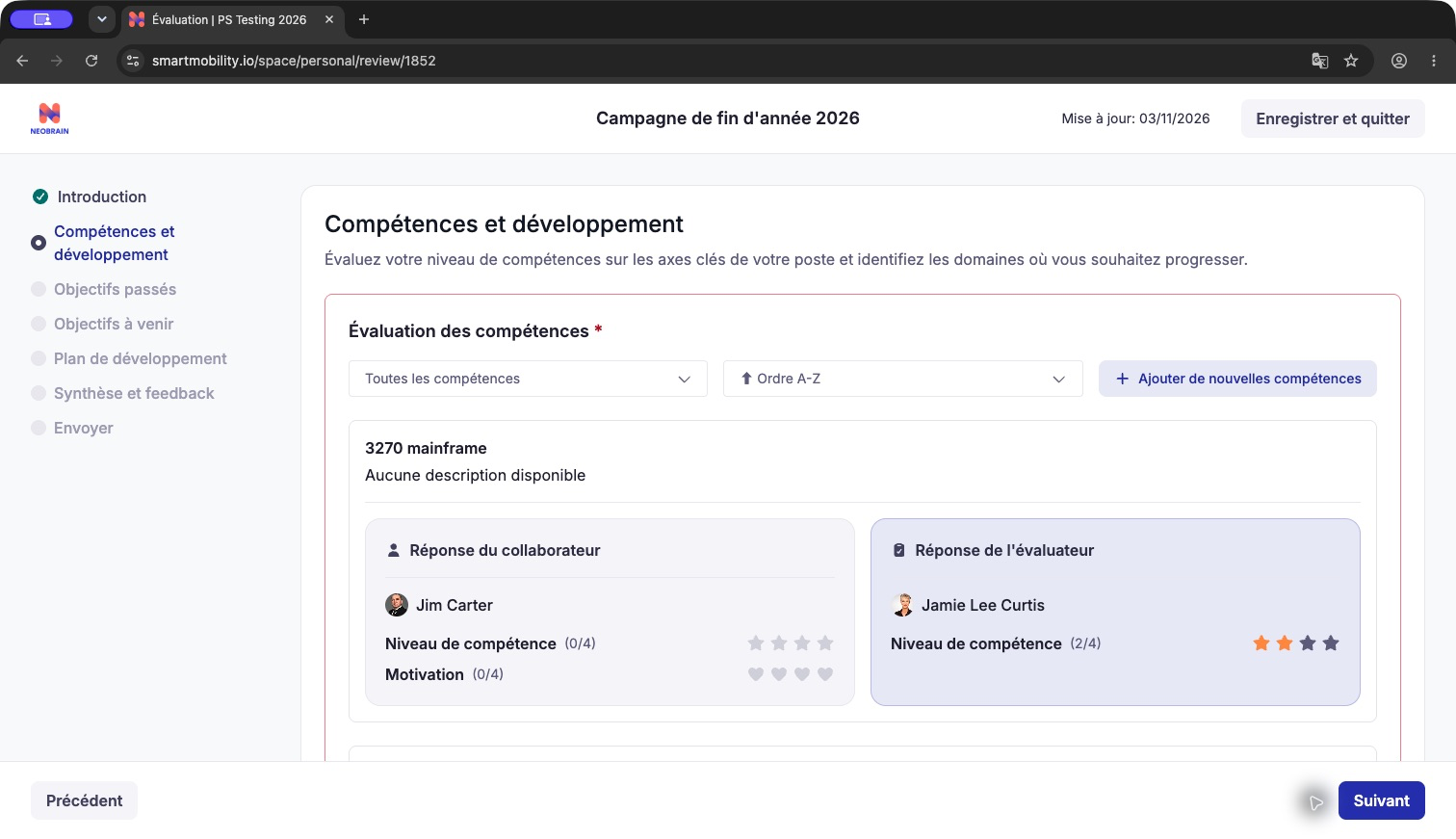
Observed failure: the skill-selection dialog allowed a test rating and an add action, but the skills section subsequently rendered without content. Reloading and reopening preparation reproduced the missing section. Persistence of the attempted skill rating was not established.
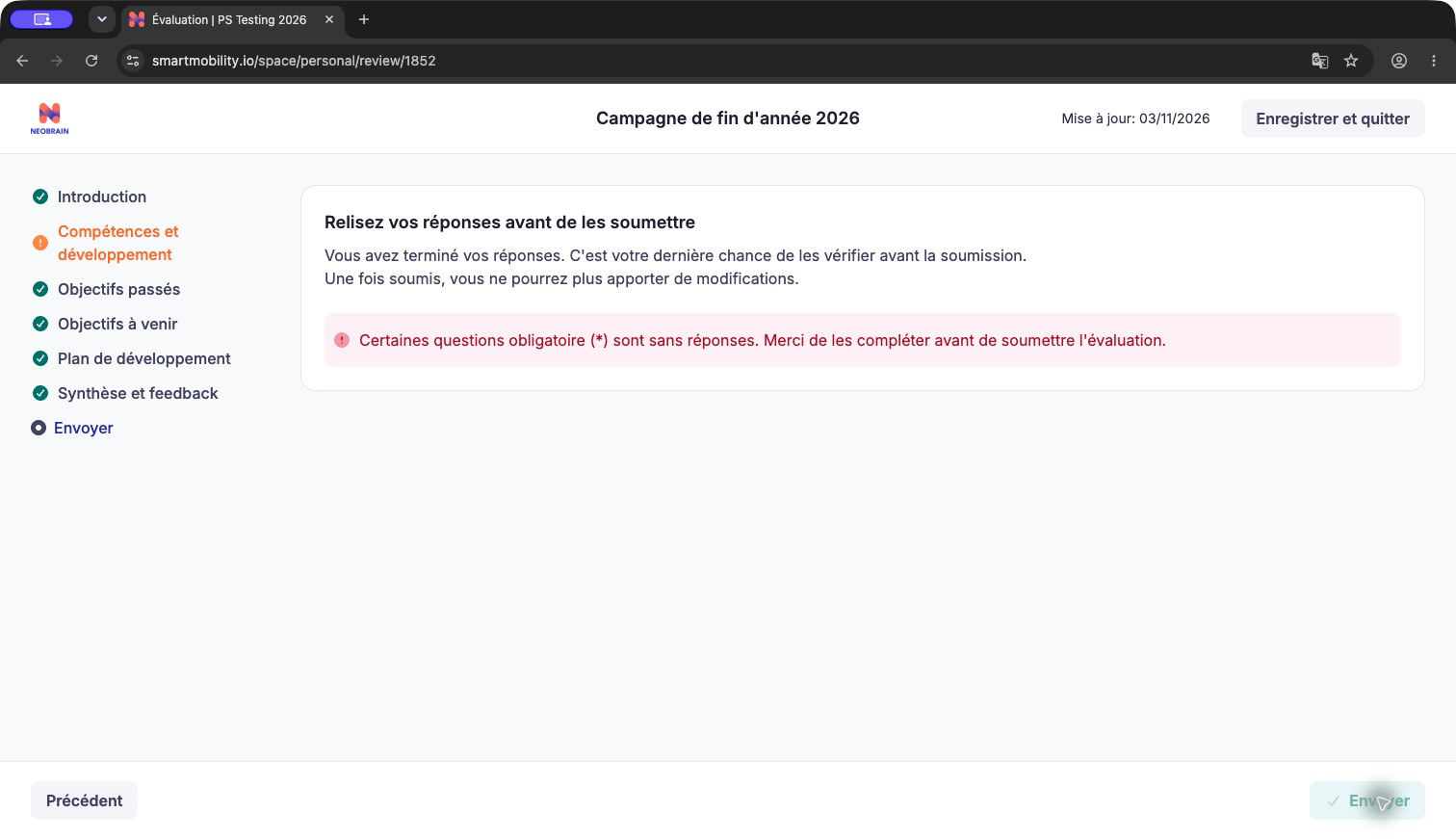
The final screen continues to reject preparation submission. Report this failure to the platform administrator; completion of the other sections does not override a required skills question. Do not treat this screen as successful submission.
The same review has therefore not reached interview-day finalization, signature or verified profile synchronization. The completed-review screenshot earlier in this guide remains a separate historical example. To finish this exact walkthrough, restore the required skills section, complete and validate both participants' remaining answers, then perform the enabled interview/finalization steps. No campaign-wide completion, assignment change or validation bypass was performed.
Last updated on 3 November 2026