Training catalog — configuration guide
Prepare catalog access, course records, skills, visibility and learning destinations. This guide is for administrators; functional covers daily discovery and technical covers routes and data contracts.
Responsibility and generation matrix
| Owner | Legacy | Nextgen |
|---|---|---|
| Project/platform team | Training module switches, UI variants, integration feeds, optional LMS/LinkedIn setup, access-group/history design. | API permissions and review-catalog dependencies; generation-specific visibility and filter behavior. |
| Customer administrator | Authorized catalog creation/editing, status/language/content, provider/category, skills and eligible Smart Editor values. | No standalone nextgen catalog administration screen verified. The review modal consumes existing courses and configured fields. |
The observed HR/employee catalogs and “V2” training detail are legacy. V2 here is a legacy presentation switch, not the nextgen API version. Both backends map the formation table; separate catalogs or an automatic migration must not be assumed.
Customer administrator — prerequisites and access
- Ask the platform team to confirm Training activation for manager and employee workspaces.
- Review the intended role in Roles and permissions. A role can hide the module or permit viewing without editing.
- Open Trainings → Catalog in an authorized manager/admin context.
- Prepare company languages, course statuses, providers, categories and skills/repositories before entering or importing records.
- Confirm the intended employee audience and whether titles should open internal details or an external learning site.
| Permission | Code-defined meaning and baseline |
|---|---|
hide_training_module_bo | Negative permission: hides/blocks back-office training entry. Default role file: false for admin_rh/hrbp, true for manager. |
modify_training | Legacy edit/delete authorization. Baseline true for admin_rh/hrbp, false for manager. Creation has its own controller check; do not treat all operations as one entitlement. |
invisible_formation_module_fo | Employee-side module hiding permission; baseline false for listed standard roles. |
company_formation_addskill | Legacy skill-control visibility key: the checked template shows Add a skill for accounts without custom permissions or when this key is absent. Do not interpret its name as a conventional positive grant; confirm the effective role and screen. |
view_all_formation_request | Broadens request visibility; baseline true for admin_rh, false for hrbp/manager. It is distinct from catalog visibility. |
delete_create_edit_give_sessions | Session create/edit/delete and assignment controls; default permission file: false for admin_rh, true for hrbp, false for manager. The company session feature show_formation_session must also be enabled for request-page assignment controls. |
These are Verified in code in the default permission file/controllers/templates. Actual tenant roles and global route controls must be checked separately. Catalog access, creation, editing/deletion and export have distinct controls: modify_training governs edit/delete, creation has its own controller check, and export requires a company-school context. A visible button alone does not establish permission or confirm export delivery. Apply the effective role and company policy to each action.
Search and browse the admin catalog
- Open Trainings → Catalog with a role that can view the back-office catalog. Expand Search if its criteria are collapsed.
- Search by course title, or narrow the list with the available provider, skill, status, category, company-field and duration criteria. Choice lists depend on the company’s configured providers, references and field values.
- Apply Search. Combined criteria narrow the results; clear them with Reset before starting a different lookup. Duration choices shown by this legacy form include < 3 hours, < 48 hours and > 48 hours; confirm the course’s stored unit before relying on a duration match.
- If two cards appear to represent the same course, compare their course IDs before opening or editing one. Duplicate display alone does not establish duplicate records. Use pagination to browse more results and Export only when your role and company policy allow it.
Customer administrator — create or maintain a course
Use an authorized catalog administrator account. In the legacy manager workspace, open Trainings → Catalog → Add (Formations → Catalogue → Ajout in French). Prepare a course title, audience, prerequisites, program, objectives, delivery method, language and duration. Keep a course in the company’s unpublished state while preparing its content; review publication separately.
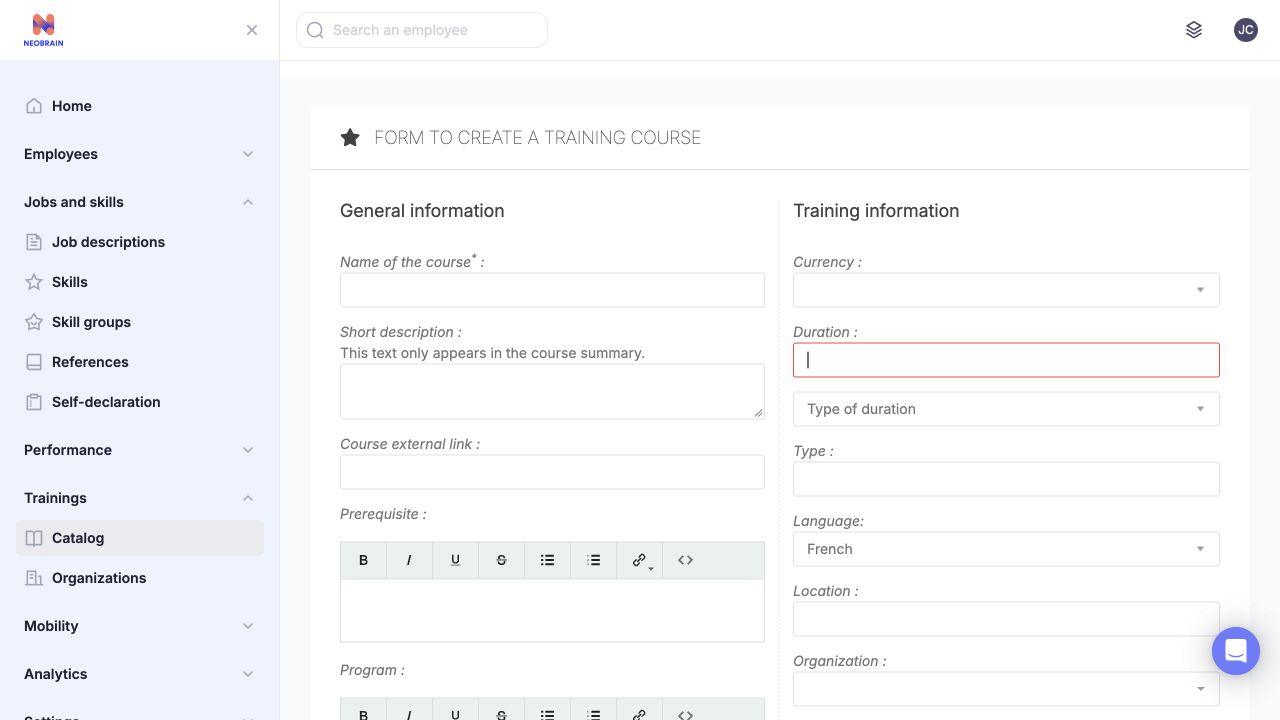
The blank course form groups general content and training metadata; some fields continue below the capture. Complete required fields and review language, duration and provider settings before saving. Course language is independent of interface language; select the language of the course content.
| Group / field | Values, defaults and effect |
|---|---|
| Name of the course | Required text. Form/nextgen schema length constraints are not identical contracts; see technical. |
| Short description | Optional summary shown on cards, separate from the full program. |
| Course external link | Optional provider/LMS destination. Combined with the detailed-view switch, determines employee title navigation. Verify the destination before publication. |
| Prerequisite / Program / Objectives / For whom / Modality | Authored rich text. Describe target audience, expected preparation, content and delivery. The free-text modality is distinct from a configured searchable Smart Editor modality field. |
| Diploma and additional content | Conditional diploma, rhythm, opportunities, contact/code/cost fields depending on switches/templates. Their presence is not universal. |
| Illustration / Documents | Optional files with server media validation. Do not confuse a course document with a session attachment. Supported files remain subject to server validation. |
| Currency | Optional: Euro, Dollar, Yuan in the form configuration. Price/cost-type controls depend on activation. |
| Duration / Type of duration | Duration value plus Hour(s), Day(s), Month(s); select a duration unit when you enter a value. Supply a consistent numeric value/unit for reliable filtering. |
| Type | Optional free text in the observed form. It is not automatically a fixed modality list. |
| Language | Required company language. The new legacy entity defaults to fr. Do not assume interface English selects an English course. |
| Location | Optional text. |
| Organization / Category | Company-provided choices. Organization can become required with its dedicated switch; category is optional in the form configuration. |
| State | Required company status; such as Published, Draft or Archived, depending on the company configuration. Review before saving; this is not a universal safe draft default. |
| Smart Editor fields | Tenant-specific field definitions and values. Available values depend on the tenant. Definitions, visibility and field flags determine use in search/access rules. |
Verified in code: FormationType, Company/FormationBundle/Controller/InterneController::newAction/editAction and templates. Optional-looking screenshots do not override server constraints. Name, language and state are required by the checked form; organization is conditionally required.
Create a course and confirm its saved configuration
- Choose Add (Ajout) and complete the required course title, language and status. Check whether organization is required in your tenant.
- Add a concise card summary, then complete Prerequisite, Program, Objectives, For whom and Modality with learner-facing information.
- Set a numeric duration and select its unit. Add an external learning link only after confirming the destination with its owner.
- Review the status carefully before saving. Select the unpublished status used by your company while content is being prepared; do not assume the form defaults to a draft.
- Save the course. Search by its title, open the result and review the Training, Skills and Useful information sections to confirm the saved content and metadata. Useful information can include visible company-defined fields; an empty configured value may display Not defined, and URL values open in another tab. If the save reports a validation error, correct the highlighted field and check the catalog before retrying to avoid duplicate records.
- To maintain a course, search by its exact title and confirm its course ID, then open Change (Modifier). Update the intended fields, save the authorized changes and reopen the course to confirm the result.
Before editing an existing legacy course: opening its edit page may immediately normalize the short description by removing legacy no-translate wrappers and leading whitespace. Review the summary after opening; this cleanup is separate from pressing Modify the course.
Configure request and session operations
Request visibility and session management are separate from catalog access. Review the effective role's view_all_formation_request and delete_create_edit_give_sessions permissions, then ask the platform administrator to confirm that Show training sessions (show_formation_session) is enabled for the company. The default role file grants session operations to HRBP only; tenant-specific permissions can differ. Request-page assignment controls are shown only when requests exist, the session feature is enabled and the role is authorized.
Use Trainings → Requests to assign an existing request to an eligible session, or create/manage a session through the available session workflow. Use Trainings → Sessions to review sessions and their participants. Before sending attendance confirmations, verify the session and actual participant list: the action sends an email to every selected employee, and the employee response records a separate attendance fact. Do not treat the request's Completed tab, session assignment or external LMS status as that response. If the request or session lists are empty, wait for an authorized request/session workflow; do not generate sample records in a customer workspace.
Use Delete only under an approved retention workflow. Deleting a course also removes its requests, favorites, skill associations, course files, company-field values, sessions and likes in the checked legacy implementation. No recovery is implied.
If the course is missing from administrative search, clear restrictive status or text criteria and search for its exact title. Continue with Skills and outcomes, then review the intended audience and publication status before employees need the course.
Skills and outcomes
Use the Skills tab to associate the course with entries from the company skill reference. These associations describe the course's learning outcomes; they do not certify that an employee has acquired a skill. Link only skills that the course meaningfully develops, and select the level expected at completion where level controls are available.
For example, the employee card for the management course Les fondamentaux du management d'équipe surfaces these three of its associated skills:
- Piloter l'organisation du travail et la performance d'une équipe — plan work and team performance.
- Animer une équipe pour atteindre les objectifs — lead a team to achieve objectives.
- Donner un feedback constructif — give constructive feedback.
Where skill links are enabled, these labels open employee Search; confirm the selected Skills criterion before relying on the results. The course’s full Skills tab can include additional outcomes. Use the exact existing skill entry from the suggestions so the association resolves to the company’s skill reference rather than an unlinked text label.
To add or adjust course skills:
- Open the course's Skills tab and choose Add.
- Search for the intended skill and select it from the suggestions.
- Choose the appropriate outcome type and level where those controls are offered. Distinguish required prerequisites from skills acquired at the end of the course.
- Save, reload the course and confirm that the skill appears under the appropriate outcome heading with the intended level.
- To change an existing level, select the skill row and use the row action to edit it; review the saved value after reloading.
- To remove a course-skill association, select its row, choose Delete and confirm. This removes the association from the course; it does not delete the shared skill reference or establish that an employee profile skill is removed.
If the skill search offers no selectable match, cancel the dialog and ask the skill-reference owner to confirm that the entry is available. A typed label alone does not establish a saved association. Confirm prerequisite display and downstream effects with the platform owner before relying on them in a live catalog.
Before adding an Acquired outcome to a course that already has associated users, ask the platform owner whether employee skill profiles may be updated. The legacy add path can assign the skill to users associated with that course; existing nonzero levels may be preserved. This is separate from the completion-driven feature switch, which adds course skills through its completion workflow. Do not infer employee acquisition from a course outcome or from a completion label alone.
Prepare skill choices for employee search
The legacy employee search lists translated skills associated with published company courses. Its skill-choice list uses the employee’s interface language, independently of the course-language selector.
- Associate the course with existing reference skills and review the relevant course publication status.
- Ask the skill-reference owner to ensure those skills have translations in the employees’ interface languages.
- Open employee Search and check that the intended skill is available in Skills. Select it and apply Search before relying on the results.
- If a card’s skill link opens broad results or the selector is empty, check translations and published associations. Use title search until the list is available; changing course language alone does not rebuild the skills list in another language.
Publication, language and visibility
Use a status marked published to make the course eligible for legacy employee search. Administrative search can still expose drafts and archived records. Check the intended language in the employee view; changing a course's language is not an automatic translation of its content.
After publication, confirm that an eligible employee can find the course using its language and title. A draft’s presence in the administrative catalog does not make it available in employee search. Publication is a discovery control: an unpublished course can still be reachable through a direct employee link. Confirm the required page-access policy with the platform owner. Access groups, training history and search filters can also affect results. For whom is descriptive content; naming a role there does not configure an access restriction.
Access-group and history rules rely on configured Smart Editor fields. Platform administrators must pair the User and Formation visibility fields and align the stored access-group names. Courses without a group value can be treated as unrestricted. If the required fields/user values are missing, the implementation may apply no group restriction; this is not a default-deny access system. Validate with representative authorized employee accounts before relying on it for audience separation.
Training history uses a flagged course field linked to an employee identifier to exclude previously attended courses in employee search. Do not substitute likes, favorites or provider-link clicks for history/completion evidence.
Review access before making a course available
- Review the saved title, content language, duration and unit, learning outcomes and destination link.
- Describe the intended learners in For whom. If discovery must be restricted, ask the platform administrator to confirm the corresponding access-group fields and employee group values.
- Choose the published status when the content is ready and you are authorized to release it.
- In the employee workspace, select the course language, clear restrictive search criteria and search for the title. Confirm that the visible title opens the intended internal detail or provider.
- Where audience restrictions are required, have the platform owner confirm both eligible and excluded employee scenarios, including direct links. A successful search for one employee does not establish the full access policy.
For bulk preparation use the Import Center: Formations creates/updates courses and Formations&Skills handles their skill links. Confirm the appropriate schema, language, reference data and mappings; do not assume exports can be re-imported unchanged.
Platform-team reference — activation and presentation
The baseline below is Verified in code in legacy config/configuration/feature_module.yml. Values are repository defaults, not proof of effective tenant configuration. Tenant overrides may differ from these defaults.
| Key | Baseline | Meaning / dependency |
|---|---|---|
module_formations_bo, module_formations_fo | true / true | Back-office/employee Training activation, still subject to access rules. |
formation_formationskills | true | Exposes the skills tab and related level controls where consumed. |
new_formation_view | true | Newer legacy course detail in both workspaces. |
formation_hide_catalog | false | Hides the broad employee catalog section when enabled. |
formation_hide_filters | false | Controls filter/search presentation where consumed. |
formation_hide_home_filters | true | Hides home filters and makes card skill labels plain text where this switch is used. Dedicated search/See more can still expose filters. |
formation_show_formation_locale | false | Despite its name, true hides the language filter in the checked template. |
formation_categorie | true | Employee category filter is hidden when true in the checked template. Confirm the rendered behavior rather than inferring from the label. |
formation_show_organisme_field | false | When true, the form makes Organization mandatory. |
formation_suggest_profile, formation_suggest_career, formation_suggest_skill_motivation | true / true / true | Personalized job/career/motivation sections, requiring corresponding data. |
training_most_liked | true | Popularity suggestions; likes are distinct from favorites. |
formation_show_like_dislike | true | Like/dislike presentation. |
always_display_course_detailed_view | false | With a course external URL, false permits direct employee navigation to the LMS; true retains internal detail. |
formation_linkedin_suggestions | false | Optional connector-backed LinkedIn suggestions; separate from the company's own catalog. |
formation_show_learning_hub, formation_learning_hub_link | false / null | Optional learning-hub action and destination. |
show_formation_session | false | Session-related presentation; requires usable session data and permissions. |
bo_formation_request | false | Enables the modern internal-detail request action when prerequisites, existing-request state and course destination permit it. |
request_formation_form | false | Negative control used for the HR/manager employee-record development request button; separate from the standalone employee-detail action. |
module_formation_catalogue_fo | false | Enables out-of-catalog request entry where consumed. |
module_formation_catalogue_fo_demande | true | Negative control hiding employee My requests navigation. |
hide_formation_demands | true | Management Requests-tab hiding setting described in the admin screen; confirm the rendered behavior in the deployed workspace. |
formation_add_skills_when_finished | true | Adds associated skills through completion handling, not discovery. |
fo_hide_trainingcost | false | Hides employee course cost when enabled. |
The platform owner manages activation in Configuration → ACCÈS (Gestion des modules) → Training Management. The screen labels and Management/Employee grouping are Observed in application; switch effects are Verified in code in the consumers described here and in the technical guide. Career suggestions are enabled separately with formation_suggest_career; the setting is on in the checked workspace. Connector credentials remain with the authorized integration owner.
Career-suggestion prerequisites
For career-based recommendations, enable Suggestions selon le projet de carrière (formation_suggest_career) and confirm the employee has a saved plan with at least one target job and skill requirements. The employee can mark assigned plan actions complete; this updates plan tracking and shows when all listed actions are done. The legacy career-suggestion search uses plans, target jobs and employee/course skill levels, not action-completion flags. The career empty-state message is rendered when the suggestion section has no result items; it is not a reliable indicator that plan actions remain incomplete. Review target-job skill requirements against employee levels, and confirm eligible published courses are linked to relevant skill gaps. The deployed workspace may apply additional conditions, so verify its behavior with a defined employee, target-job skill gap and matching published course before changing employee or catalog data. The job-based and career-based search switches are mutually exclusive in the legacy filter UI where that handler is active.
Platform owner — configure the request journey
Open Configuration → ACCÈS (Gestion des modules) → Training Management. The screen separates Management Platform and Employee Platform controls and provides Enregistrer to save. Review the whole module form before applying an authorized change; saving applies its submitted switch states.
- Confirm that Formations is enabled for each intended workspace. Catalog activation alone does not enable requests.
- In Management Platform, review Permettre de réaliser une demande de formation (
bo_formation_request). The modern employee internal-detail request action uses this setting, together with course prerequisites and existing-request state. - Decide whether employees should see My requests. In Employee Platform, Masquer le bouton “Mes demandes” is a negative control: clear it when that navigation should be visible. Separately review Masquer l’onglet Demande for the management Requests tab. These controls hide navigation; they do not delete existing requests.
- Review out-of-catalog requests separately. Rendre possible les demandes de formation hors catalogue (FO / 1to1) controls a different entry point from a catalog-course request.
- Ask the workflow owner to confirm an active default request status, the employee’s manager association and the intended notification configuration. Course publication status and request status are separate records.
- Review the intended course journey. An external course URL takes priority over the modern detail’s request action. Afficher la vue détaillée… keeps an internal page before the provider, but does not by itself replace the provider action with a request button.
- Review the saved configuration from the intended employee workspace. Confirm the available action and navigation before releasing the workflow to users.
request_formation_form is a separate negative control used in the HR/manager employee-record development section. It should not be treated as the single control for the standalone employee catalog’s request button.
When an employee reports an uncertain submission, check for an existing request and its history before recommending another send. The catalog request service saves the request before its notification step; a notification failure can follow successful persistence. Confirm the notification recipient and delivery outcome with the workflow owner.
Nextgen configuration and coexistence
The nextgen review catalog uses training API permissions (read-training, with separate create/update/delete permissions), employee-visible Smart Editor filter definitions and course data. Its modal fetches the reviewee's catalog so a reviewer does not simply receive their own eligibility scope. Review-modal options depend on the deployed configuration.
Do not copy the legacy duration interpretation into nextgen: the checked V1 API normalizes a day to 7 hours and a month to 147 hours; legacy duration search uses 24-hour days in its relevant comparisons. Keep authoritative values/units consistent and test each consuming workflow. Shared table mapping does not establish identical publication, filtering or update semantics.
Diagnose a duration that appears without a unit
If an employee card shows a duration number without its unit, inspect the stored course record before interpreting the value. Confirm the intended unit with the catalog owner, then correct the record only with authorization. Until confirmed, remove the duration criterion when searching; do not assume that a number means hours.
Verified in code: the checked legacy duration predicates require a duration-type relation matching a supported hour/day branch. Nextgen normalizes duration differently; see the technical guide before comparing results across generations.
Validation, rollout and troubleshooting
Start with approved sample courses in the intended language/status, representative skill links and audience values. Verify both HR and employee screens before extending a feed or broad publication. For external links, confirm destination and intended detail behavior without assuming that a click reports completion.
If a course is missing, check language, published status, groups, attendance/history, filters and module activation. If suggestions are absent, verify job/career/profile skills and acquired levels before changing visibility. If filters are missing, inspect both the relevant switch and Smart Editor context; a current navigation shell does not establish a nextgen screen.
Reverting visibility or publication affects future discovery; it does not undo requests, completed training, skills already added or data already exported. No automatic rollback across these processes was established. Coordinate corrections with the authoritative source/feed to avoid later overwriting manual changes.
Evidence and limitations
This guide combines customer-admin procedures with repository-defined defaults. Tenant permissions, switches, statuses, field values and integrations can differ. See the technical guide for implementation references and verification boundaries. Platform-owned activation and connector settings are not customer-admin tasks unless your organization explicitly delegates them.
Last updated on 3 November 2026