People Review — legacy functional guide
Legacy People Reviews
Who can see which employee?
Campaign visibility depends on the permissions and relationships selected for the review. Confirm the intended reviewer population before publishing a campaign.
| Person and conditions | Campaigns visible | Employee population and information |
|---|---|---|
| User without Access the reviews | No People Review entry in the documented journey | Other rights alone do not make the tab available. |
| Ordinary reviewer, with access and without See all the reviews | Campaigns where the person is a reviewer | Employees linked to that reviewer through the relationships selected for the campaign; the individual review uses its questionnaire. No collective-review access by default. |
| Reviewer with campaign Administrator checked | Campaigns where that person participates, unless wider rights also apply | All reviewed employees of that campaign, including unrelated employees; collective review becomes available. This is a campaign role. |
| User with access and See all the reviews | All campaigns in the organization, including drafts according to the legacy guidance | Broad campaign and employee visibility; this is not limited to the person's own team. Creation/editing is a separate right. |
| Reviewed employee only | No access established by being included | Inclusion does not mean the employee can see the review or the committee discussion. |
| Reviewer assessing themself | Depends on campaign membership and rights | The separate self-review permission applies in the normal restricted path; do not treat this as a general employee self-assessment workflow. |
The manager relationship is one option. Configured relationships can represent another evaluator, HR or a matrix manager. The relationship must be recorded on the reviewed employee's profile and selected in the campaign. A role named “HR” or “Manager” alone does not describe the effective population.
Campaign lists, individual forms and PDFs can have different access rules. Check the audience and sharing settings for each surface before relying on team relationships alone to restrict sensitive information. See the technical guide for implementation differences.
Assess and calibrate in a legacy campaign
- Open People Review in the authorized HR/manager area. Choose an available campaign.
- Check its population and your reviewer status. An ordinary reviewer should see the employees linked through the selected relationships; a campaign administrator sees the campaign population.
- Open an employee's individual questionnaire. Review profile information and any linked 1-to-1 answers, then complete the configured questions.
- Save the answers and complete the preparation using the available action. A locked preparation requires the separate unlock right and an authorized intervention.
- If authorized, open Collective review to compare positions in the configured matrix and review succession information where those question types exist.
- Generate an individual PDF where available. Only the configured PDF-visible questions and related answers should appear. Inspect the resulting document before sharing it.
Campaign steps and button labels can vary by company configuration.
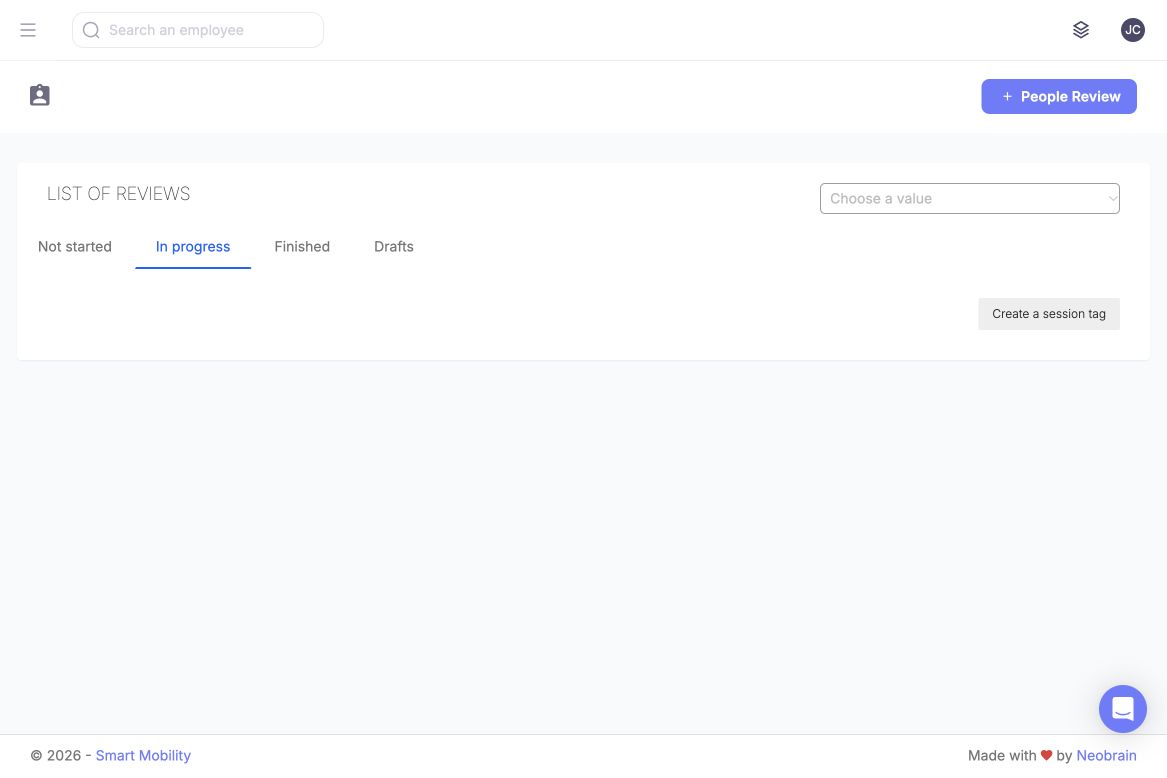
Use the lifecycle tabs and session selector to find the campaign group and period you need. This list is the entry point to individual and collective reviews.
Legacy filters, options and actions
| Control or option | Purpose, values and behavior |
|---|---|
| Campaign tabs | Not started, In progress, Finished, Drafts. These group campaign statuses; they do not change assignments or permissions. |
| Campaign sorting | Use the date fields and sort direction available in the list. The initial order may depend on the screen. |
| Employee list | The campaign's participants intersect the relationship-derived population for ordinary reviewers. Changing a display criterion does not add an employee or grant access. |
| Matrix axes | The legacy template offers separate indicator selectors, starting with an empty option and populated from selection indicators with choices. Choose the two relevant indicators for comparison; available titles are questionnaire-specific. |
| Individual questionnaire | Question types determine the input: text, choices, rating or specialized display. Required values and choices depend on the template; no universal rating scale or mandatory-field set is assumed. |
| Collective review | Requires the campaign role or review access configured for calibration. Ordinary reviewer access alone may not include it. |
| A generated output with its own access and question-display rules. Hiding a PDF question does not remove it from the on-screen questionnaire. |
Other deployed filters, their reset behavior and combination logic can vary. Do not infer nextgen filters exist on legacy screens.
Legacy forms and questionnaires
The legacy campaign selects a previously created People Review questionnaire. The documented catalogue includes sections, messages, simple and open text, selection and choice questions, ratings, profile completion, linked 1-to-1 information, succession plans, collective succession and collective matrix questions.
A matrix uses the configured selection questions, for example performance and potential. Profile completion and 1-to-1 questions display existing information; they should not be confused with a fresh employee response. Linked annual-review information depends on selecting the corresponding interview campaign.
Question-level PDF visibility also applies to the answer shown in the generated document. It controls the PDF output, not campaign membership or all on-screen access. Prepare the questionnaire before launch; changing a template that already has answers may affect existing responses.
Employee visibility in legacy People Review
Employees may supply profile information or annual-interview answers that authorized reviewers later consult through the People Review questionnaire. Those source workflows have their own rights. Being reviewed does not by itself establish access to the People Review or committee discussion. If an employee also holds a reviewer role, apply that role's campaign and self-review checks separately.
Troubleshooting
| Symptom | Checks |
|---|---|
| Menu missing or page denied | Ask the administrator to check feature activation, your role permissions and campaign assignment. A visible menu does not necessarily provide access to every employee record. |
| Campaign visible, employee absent | Check participation, relationship scope in legacy, assigned evaluator/committee status in nextgen, and active filters. |
| Campaign table visible, individual detail denied | In nextgen, check evaluator/committee membership separately from owner/creator status. |
| Form readable but not editable | Check the current phase and whether your role can edit at this step. |
| Talent Card empty | Verify source campaign/question selection and whether the reviewed employee has answers. |
| PDF omits a question | In legacy, check question-level PDF visibility; do not change a live answered template as a diagnostic shortcut. |
Last updated on 3 November 2026