Forms — legacy functional guide
Find a legacy questionnaire
Open Performance → Questionnaires to browse questionnaire cards, search and filter the library, or create, edit and copy a questionnaire. Copying creates a separate saved item; it is not a preview.
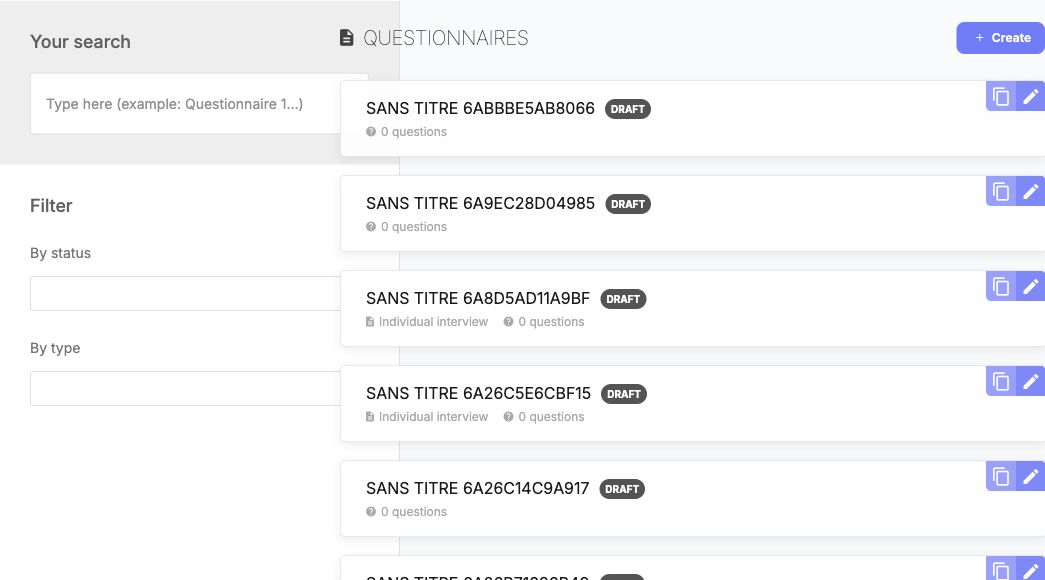
Use the title, status and type criteria to locate the intended questionnaire. Copying creates a separate stored questionnaire; it is not a preview. Company-authored titles can use a different language from the interface.
Find an interview questionnaire
- Enter part of a title in Your search if needed.
- Set By status and By type, then select Search.
- Read the matching cards' title, type, status and number of questions. Open the existing form's detail/edit link when authorized.
- Use Reset the search to remove the criteria and broaden the results.
| Control | Choices and effect | Defaults / clearing / example |
|---|---|---|
| Your search | Free text for questionnaire search. | Enter a distinctive part of the title, then search. |
| By status | All, Draft, Published, Archive. | Choose a status to narrow results; choose All to remove this criterion. |
| By type | All; questionnaire/test, interview support, mobility, 1-to-1, People Review and 360 Feedback types. Wording varies by locale. | Choose the type that matches the intended process. 1-to-1 and interview support are separate legacy types. Choose All to remove this criterion. |
| Search / Reset the search | Apply or clear criteria. | Search with the selected criteria or reset them to broaden the results. |
| Pagination | Switches result pages. | Page 1 initially; additional pages depend on matches. |
| Create / edit / copy | Opens the authoring workflow or duplicates content according to the selected action. | Rights apply. Read configuration before changing a form already used by a campaign. |
A saved legacy draft can be checked before any campaign assignment: reopen it from Performance → Questionnaires, then inspect the title, type, status and question list. The saved-draft procedure illustrates a persisted open question and its required setting. A builder preview is not a respondent submission; answer validation and completion remain tied to the assigned campaign.
Last updated on 3 November 2026