Self-assessment — functional guide
Before you begin
Self-assessment lets employees rate skills, share their assessment with their manager and consult the manager's feedback. This guide concerns the legacy skill self-declaration campaign, rather than a questionnaire-based interview or a People Review. Employees need campaign membership, profile skills (or a configured assessment job), an open published campaign and a valid manager relationship. Managers and administrators need access to the campaign and employee assessment surfaces.
In the manager workspace, open Jobs and skills → Self-declaration. Navigation labels can vary by tenant; this guide calls the capability Self-assessment.
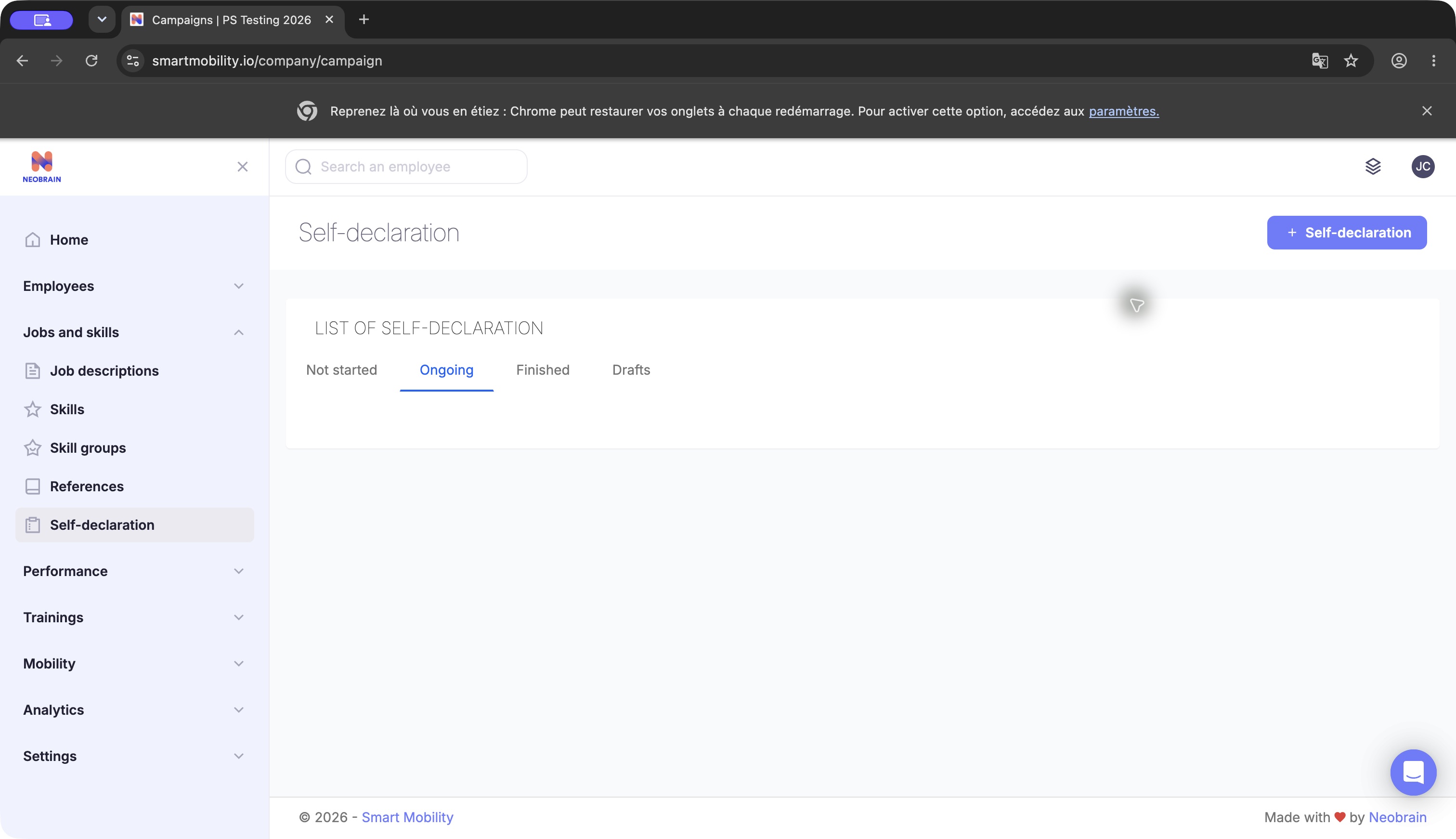
The manager navigation provides the Self-declaration entry and campaign lifecycle tabs. Choose a tab to locate a campaign. Creating a campaign saves a draft.
See Configuration for campaign setup and Technical for implementation boundaries.
Terms and responsibilities
| Term | Meaning |
|---|---|
| Self-declaration / self-assessment | Employee assessment of skills; these labels refer to the same legacy campaign in this guide. |
| Profile mode | Assesses the employee's profile skills. |
| Job mode | Assesses skills from one campaign-selected job, when the job-assessment feature is enabled. |
| Level | Skill proficiency using the tenant's configured skill scale. |
| Motivation | Employee interest/motivation, separate from proficiency; it can be hidden. |
| Step | A configured phase with a type, order, instructions and deadline. |
| Completion | One employee's progression and finished flag, separate from campaign publication and dates. |
Complete your self-assessment
The available steps depend on the campaign's configured mode, phases and current status.
- Open Personal space. For a current assigned campaign, use its banner or the Begin my self-assessment opening prompt. If it is not shown, check the assigned campaign list and its dates.
- Read the campaign instructions. In profile mode, check and complete the profile skills before starting. In job mode, check the displayed assessment job; this can differ from the employee's own job.
- Review the skills and choose a level on the displayed scale. Set motivation if that column is available. Do not assume all tenants use the same maximum level or motivation labels.
- Review the values and use the action to share the self-declaration with the manager. Confirm the dialog. Sharing records assessment values and moves the employee to the configured manager-assessment step.
- Follow the banner while waiting for manager assessment or the face-to-face exchange. Employee sharing does not itself finish the whole process.
- Once the manager feedback is shared and the completion is finished, use the banner's consultation action. It opens the profile assessment section and records that the feedback has been seen.
Expected result: the campaign retains employee and manager assessment history, and the participant progresses through the configured steps. Notifications can accompany sharing and completion; delivery is not guaranteed by a successful save.
Follow a self-assessment as manager or administrator
Open Jobs and skills → Self-declaration. The list groups campaigns into Not started, Ongoing, Finished and Drafts. Creating a campaign persists an initial draft.
Campaign detail summarizes its information, steps, participants and completion counts. The employee's manager profile view includes the campaign assessment surface. Review the employee assessment, enter manager levels where supported, carry out the configured exchange and share the feedback. Completion is stored separately from the campaign end date.
Available step types include Self-declaration, Share manager, Assessment Manager, and Face to face exchange. Their presence does not mean every campaign uses all four or follows one universal order. Administrators configure the sequence; progression depends on its required step types.
Review and share the manager assessment
- Open the intended campaign and check the employee's current step and completion state.
- Open the employee assessment from the authorized manager profile view. Review the employee's shared levels and motivation separately.
- Enter manager levels where the campaign permits them, using the displayed skill scale. Check the assessment job in job mode before comparing values.
- Complete the exchange when that step is configured, then use the available feedback-sharing action when the assessment is ready.
- Reopen the employee assessment to check the recorded values and progression. The employee consults the shared feedback from the personal-space campaign banner once it is available.
Expected result: the employee and manager contributions remain distinguishable, and the participant advances according to the configured sequence. If the next step is unavailable, ask the campaign owner to check the step order and participant state before sharing again.
Business rules and profile effects
| Rule | Product behavior |
|---|---|
| Campaign availability | The campaign must be assigned and published, and the current date must fall within its configured start and end dates. |
| Draft is not employee launch | A draft campaign is available for administrator preparation. Employees can access an assessment only after the campaign is published, assigned and within its configured dates. |
| Profile-mode changes | Rating or motivation changes can update the employee profile immediately. Sharing also records the values and campaign history. The completion-time profile-update option does not make profile mode a sandbox. |
| Job-mode changes | Employee ratings are collected for the selected job; sharing records the campaign history for that job’s skills. |
| Optional completion-time update | When enabled, campaign history is applied to the profile at completion. A manager rating takes precedence when available. In job mode, a missing profile skill is added only when a manager rating exists. |
| Removing a profile skill | In profile mode, removing a skill also removes it from the employee’s profile; it does not only hide it from the campaign. |
| Access | Campaign availability depends on activation, assignment, user permissions and manager relationships. A visible menu does not by itself grant access to every campaign operation. |
Validation and troubleshooting
| Situation | Check or next action |
|---|---|
| No campaign banner | Membership, publication, start/end window, current step and already-seen state; the initial prompt cookie can also suppress the opening prompt. |
| No profile skills to assess | Complete the profile before starting. The template provides an empty-state route back to the profile. |
| No job skills | Ask the administrator to verify the selected active job and its skill framework. Job mode does not automatically fall back to profile skills. |
| Motivation is absent | It may be hidden by the tenant's campaign motivation feature switch. |
| Share does not advance | Verify that the campaign has the required manager-assessment step and a valid participant completion. Escalate the displayed error; repeated submissions can repeat side effects. |
| Feedback saved but no email | Check recipient relationships and notification configuration. A completed save does not establish mail delivery. |
| Profile changed before final sharing | This is consistent with profile-mode immediate writes; see the table above. |
Legacy and redesigned behavior
This standalone skill self-assessment uses the legacy campaign workflow, which may appear within a redesigned navigation shell. Interviews have a separate self-assessment journey; use the Interviews guide for its forms, signatures, parallel evaluation and statuses. The two workflows can differ in how they save and share assessment data.
Last updated on 3 November 2026